Connecting NetSuite to Monk
Last updated: August 20, 2026
Monk connects to NetSuite to sync invoices, customers, payments, and additional entities between the two systems. Setup takes about 10 minutes and happens entirely from the Monk app.
The RESTlets access the following AR-related records: customers, invoices, credit memos, customer payments, refund receipts, items, discounts, tax codes, chart of accounts, payment terms, contacts, locations, and subsidiaries.
The integration record is scoped to RESTlets, REST web services, and token/certificate-based authentication only. It cannot be used for things like UI login. The credential is assigned the Administrator role.
The source code deployed can be reviewed, nothing is locked or encrypted.
What happens during setup
From Integrations → NetSuite in Monk, click Connect and sign in with a NetSuite account that has the Administrator role. This can be your own account or a dedicated integration user your team creates for Monk. Monk then does the following automatically:
Configuration checks. Monk confirms a few standard NetSuite features are available: OAuth 2.0, REST web services, SOAP web services, and the SuiteCloud Development Framework. These are built-in Oracle features that most accounts have enabled by default.
Deploy scripts. Monk installs a small set of scripts, called RESTlets, into your account. RESTlets are NetSuite's official way for outside applications to read and write records. They only run when Monk calls them. Nothing runs on a schedule, and nothing changes data on its own. The RESTlets access the following AR-related records: customers, invoices, credit memos, customer payments, refund receipts, items, discounts, tax codes, chart of accounts, payment terms, contacts, locations, and subsidiaries.
Create the connection. Monk creates an integration record in your account and a set of secure keys. From then on, all access uses those keys. The login you signed in with is not used for day-to-day syncing, and Monk does not sign in as that user again.
Verify. Monk makes a test call to confirm everything works, then finishes.
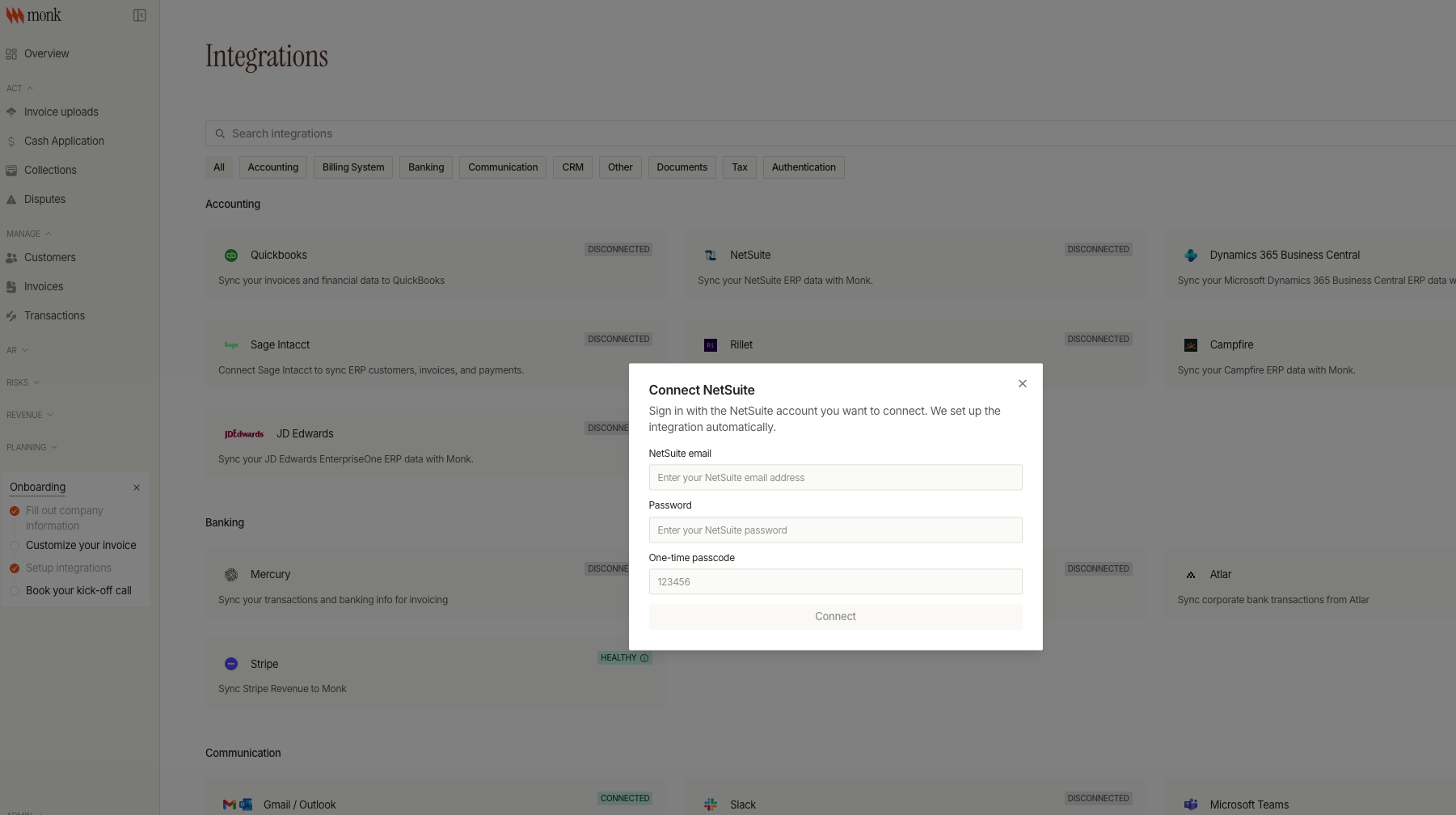
What gets added to your account
Everything Monk installs is visible to your administrators:
Scripts: under Documents → Files → SuiteScripts, in a com.monk.restlets folder, with matching entries under Customization → Scripting → Scripts. The source code deployed can be reviewed, nothing is locked or encrypted.
Integration records: at Setup → Integration → Manage Integrations: the SuiteCloud Development Integration (an Oracle-provided record used only during setup) and the integration record for the Monk connection. The integration record is scoped to RESTlets, REST web services, and token/certificate-based authentication only. It cannot be used for things like UI login.
Access keys: at Setup → Integration → OAuth 2.0 Client Credentials Setup: two certificate entries mapped to the user that performed setup.
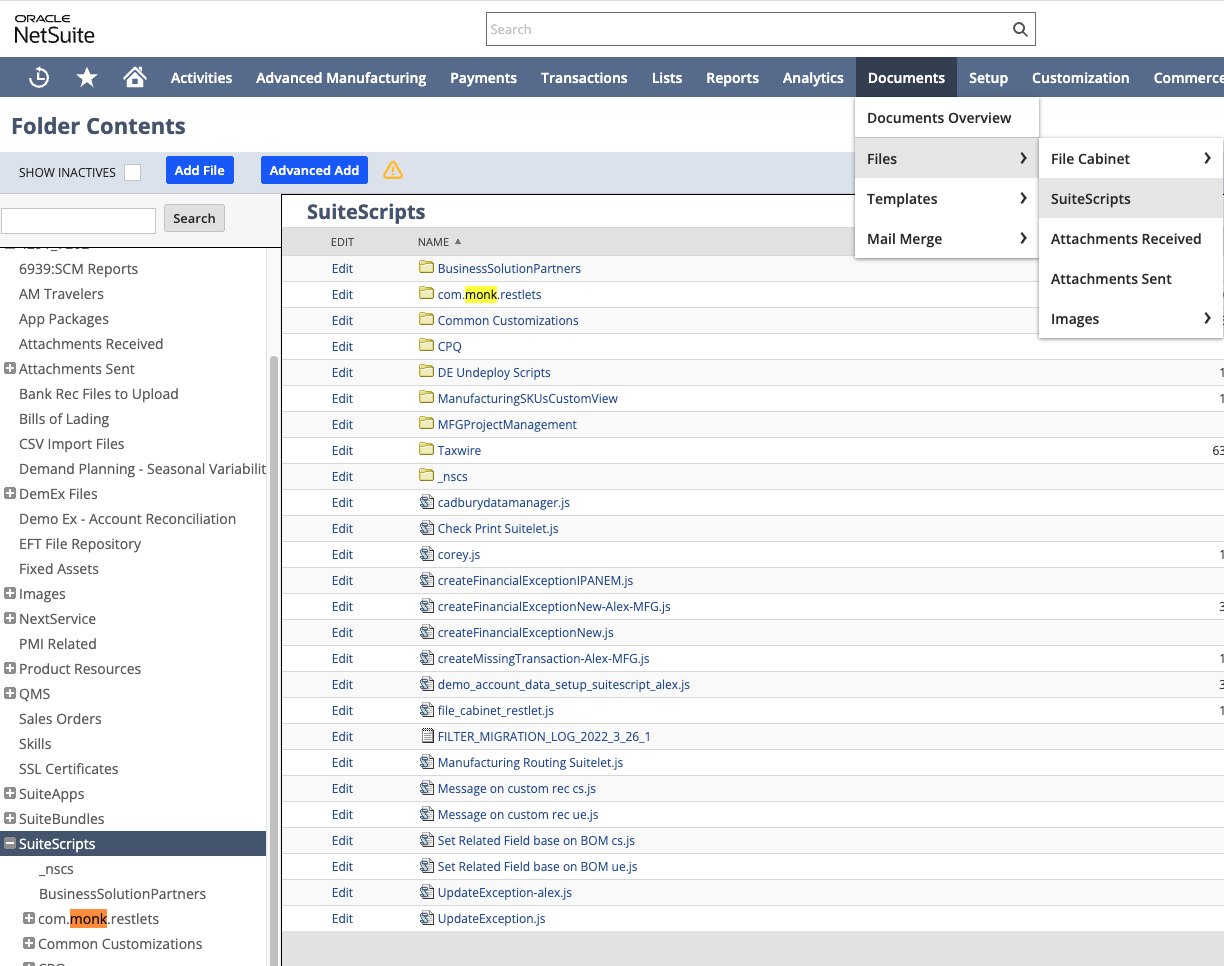
How access works after setup
During setup, NetSuite issues a set of keys for the connection, which Monk stores encrypted.
Your NetSuite password is never stored or used by Monk. The keys expire after two years at most, and you can cancel them yourself at any time (see below).
Revoking access
In addition to reaching out to the Monk team, you can cut off Monk's access at any time:
Revoke the keys: go to Setup → Integration → OAuth 2.0 Client Credentials Setup and click Revoke on the Monk entries.
Block the integration: go to Setup → Integration → Manage Integrations, open the Monk record, and set it to Blocked.
Either one stops all access immediately. If you do disconnect, let us know so we can pause syncing cleanly on our side.