Connecting Xero to Monk
Last updated: August 19, 2026
Monk connects to Xero to sync Xero customer, invoice, payment, credit note, and accounting setup data into Monk. Setup starts from the Monk app and uses Xero's OAuth authorization flow.
What happens during setup
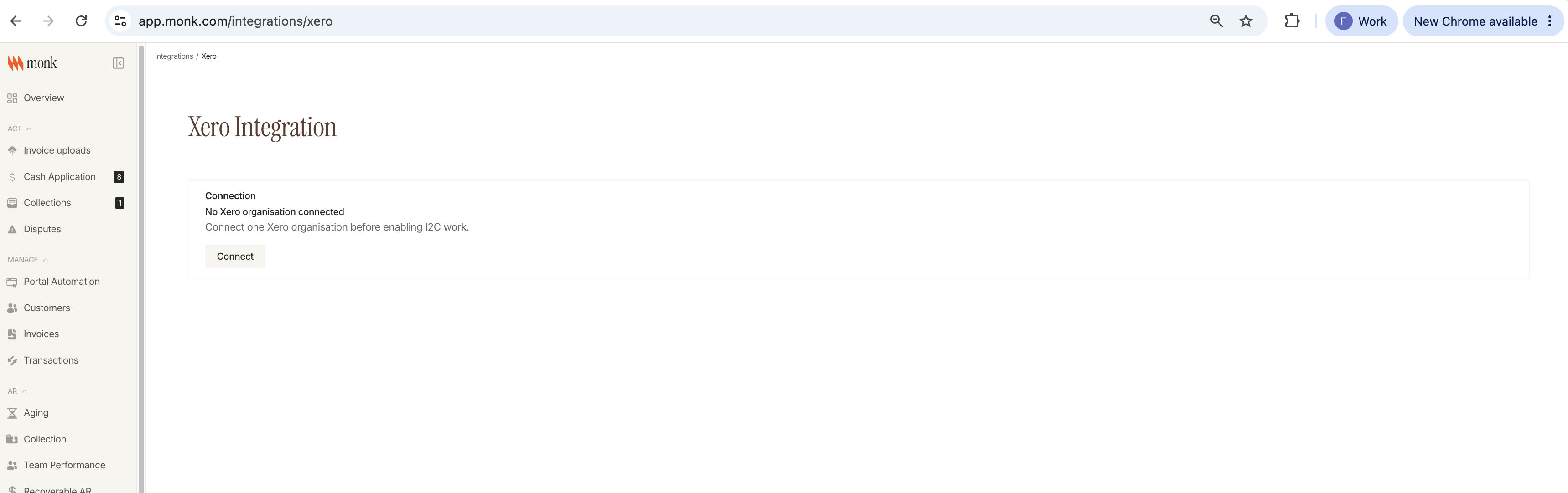
From Integrations → Xero in Monk, click Connect. Monk sends you to Xero, where you sign in and approve Monk's requested access for the Xero organization you want to connect.
Please select the single Xero organization you want Monk to use. If your Xero login has access to multiple organizations, choose only the organization you are connecting for Monk.
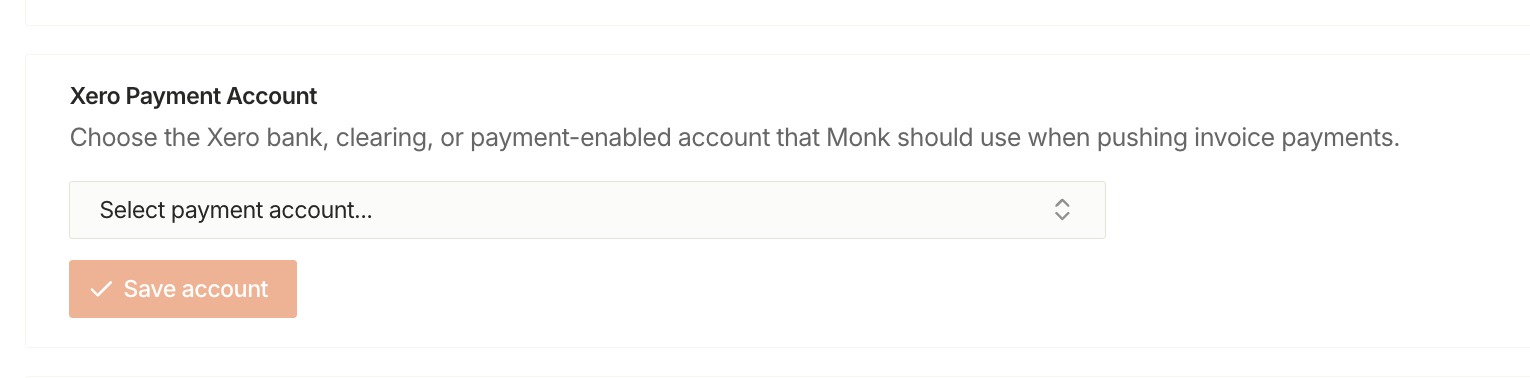
After Xero sends you back to Monk, Monk stores the connection securely. In Monk, go back to Integrations → Xero and select the Xero Payment Account. This is the Xero bank, clearing, or payment-enabled account Monk should use if Monk records invoice payments in Xero.
What Monk can access
Monk does not install scripts, files, or custom code in Xero.
When you approve the connection, Xero grants Monk access using OAuth scopes. Monk requests access to:
Your Xero identity, so Xero can complete the authorization flow.
Offline access, so Monk can keep the connection active without asking you to sign in every time.
Xero contacts.
Xero sales invoices and credit notes.
Xero payments.
Xero accounting settings, including accounts and items.
Payment creation access, used only when Monk is configured to record payments in Xero.
How access works after setup
Monk uses Xero OAuth. Your Xero password is never stored by Monk.
After setup, Monk stores encrypted Xero access credentials and the connected Xero organization details. Monk uses those credentials to access Xero and refresh the connection when needed.
If the Xero authorization is revoked, expires, or loses required permissions, Monk may show the connection as needing reconnection. Reconnecting runs the Xero approval flow again.
What your team should do in Xero
Invoices need to be approved in Xero before you expect Monk to sync and work with them.
In Xero's API, approved sales invoices appear as AUTHORISED. Xero treats draft and awaiting-approval invoices differently: they are not posted to the ledger, and payments cannot be applied until the invoice is authorised. Monk's current Xero sync is built around authorised, paid, and voided sales invoices.
For the smoothest setup, we recommend:
Approve invoices in Xero before expecting Monk to import them.
Confirm the connected Xero organization is the one you want Monk to use.
Choose the Xero Payment Account in Monk after connecting.
Keep the selected payment account active in Xero.
Coordinate with Monk before manually deleting or reversing records that Monk has created or matched.
Revoking access
You can disconnect Xero from Monk from the Xero integration page.
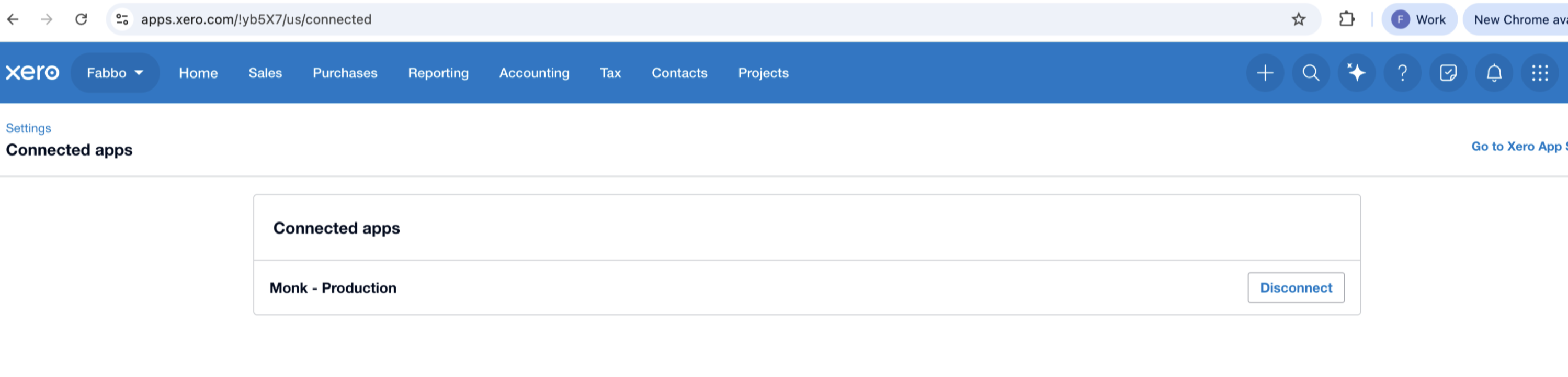
You can also remove Monk's access from Xero's connected apps or connection management settings. If you revoke access directly in Xero, please let the Monk team know so we can pause or reconnect syncing cleanly.