Integrating Monk with Anrok for Sales Tax
Last updated: April 7, 2026
Anrok Integration Overview
Set up your Anrok integration with Monk to dynamically calculate and add sales tax to your invoices where applicable.
Create your API key within Anrok
Sign into Anrok
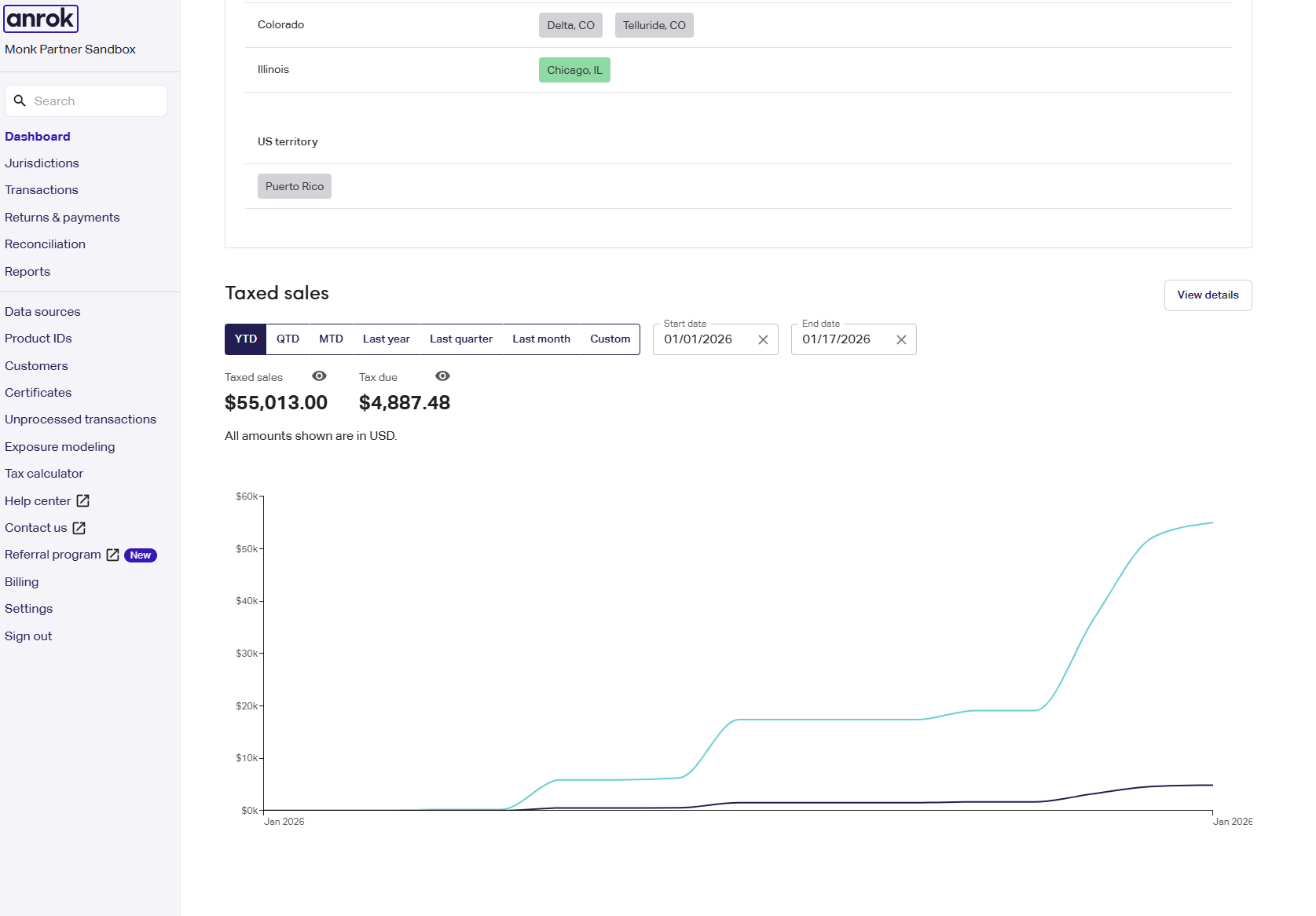
Click on
Settingsin the left side taskbar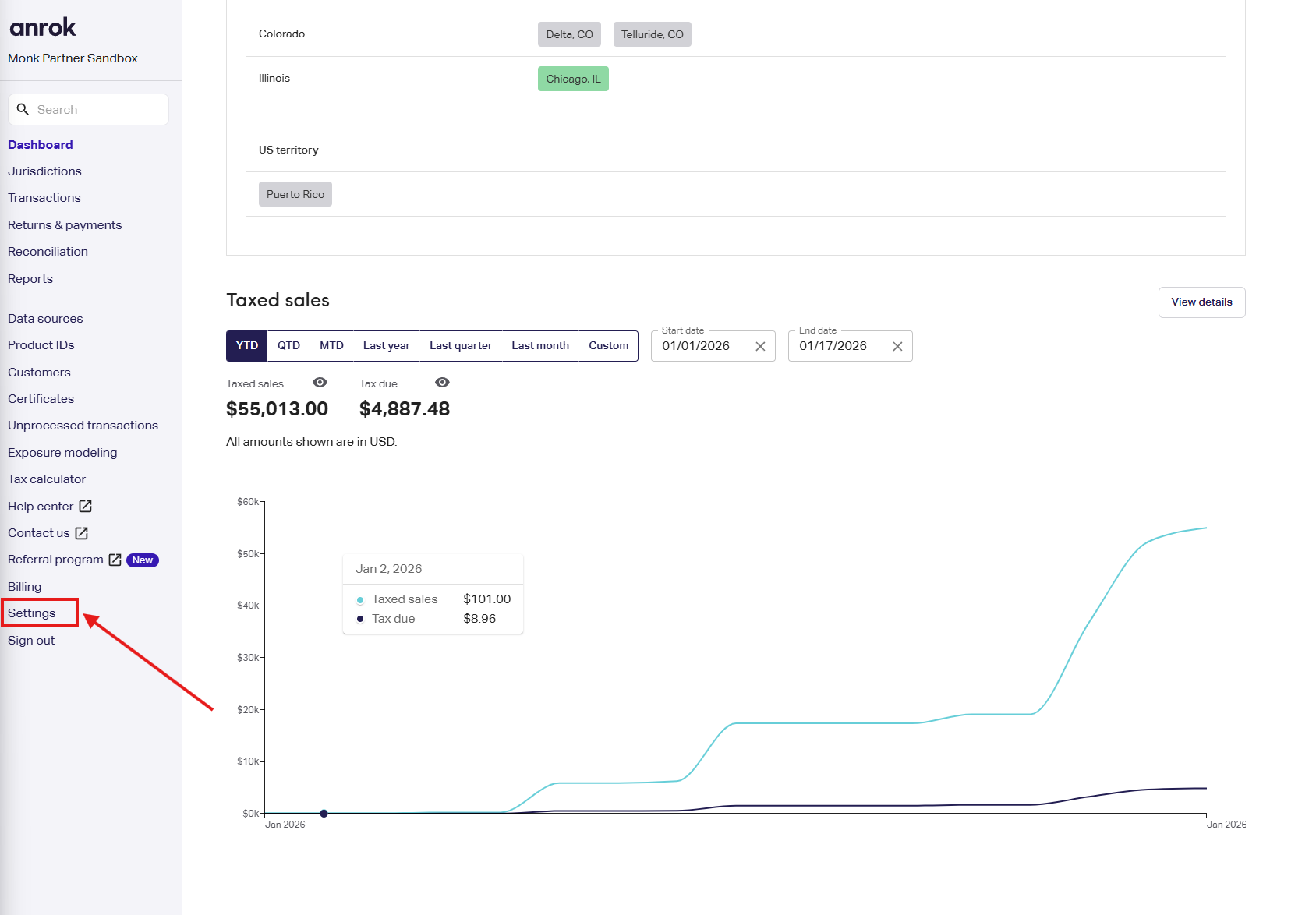
Click
Manage API keysat the bottom of the page
Click
New keyin the top right corner
Enter a description that indicates that this key is being used for Monk
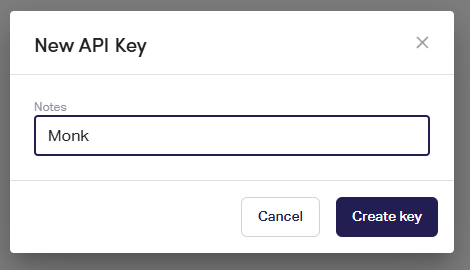
Click
Create keyCopy your API key to your clipboard (instructions to apply API key below)
Configure Anrok Product IDs
Click on
Product IDsClick
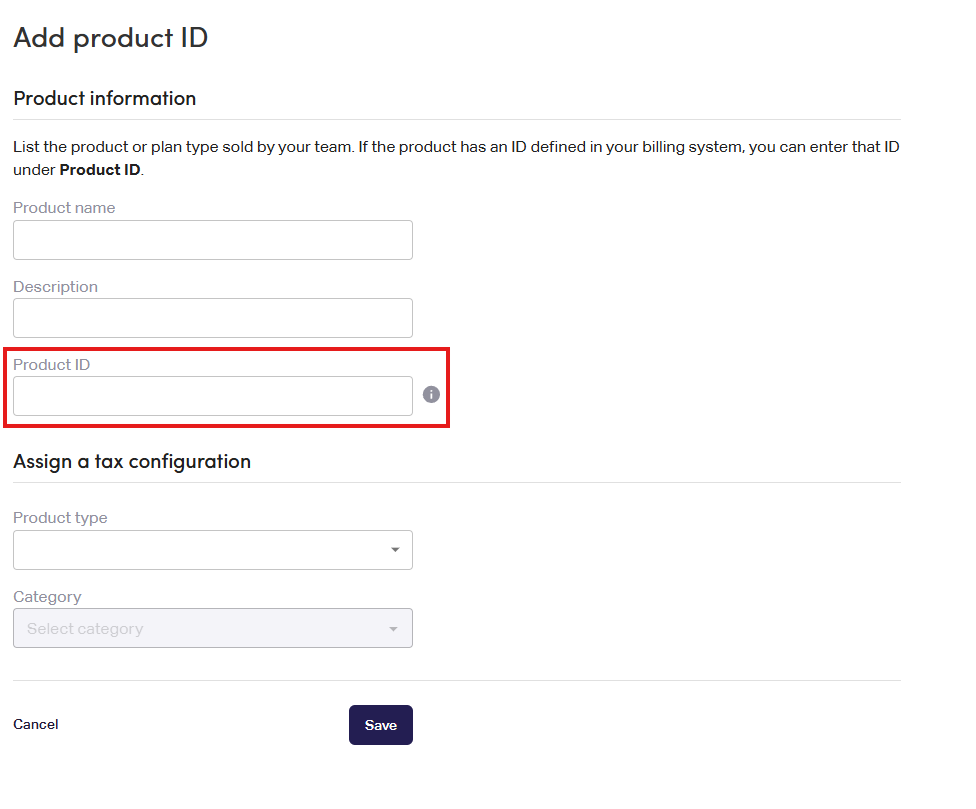
Add Productin the top right cornerComplete the form. Additional information on Anrok Product IDs can be found here
Note: You will use your Product ID that you create during this step to complete your Anrok integration within Monk (instructions below)
Complete your Anrok Integration within Monk
Sign into Monk
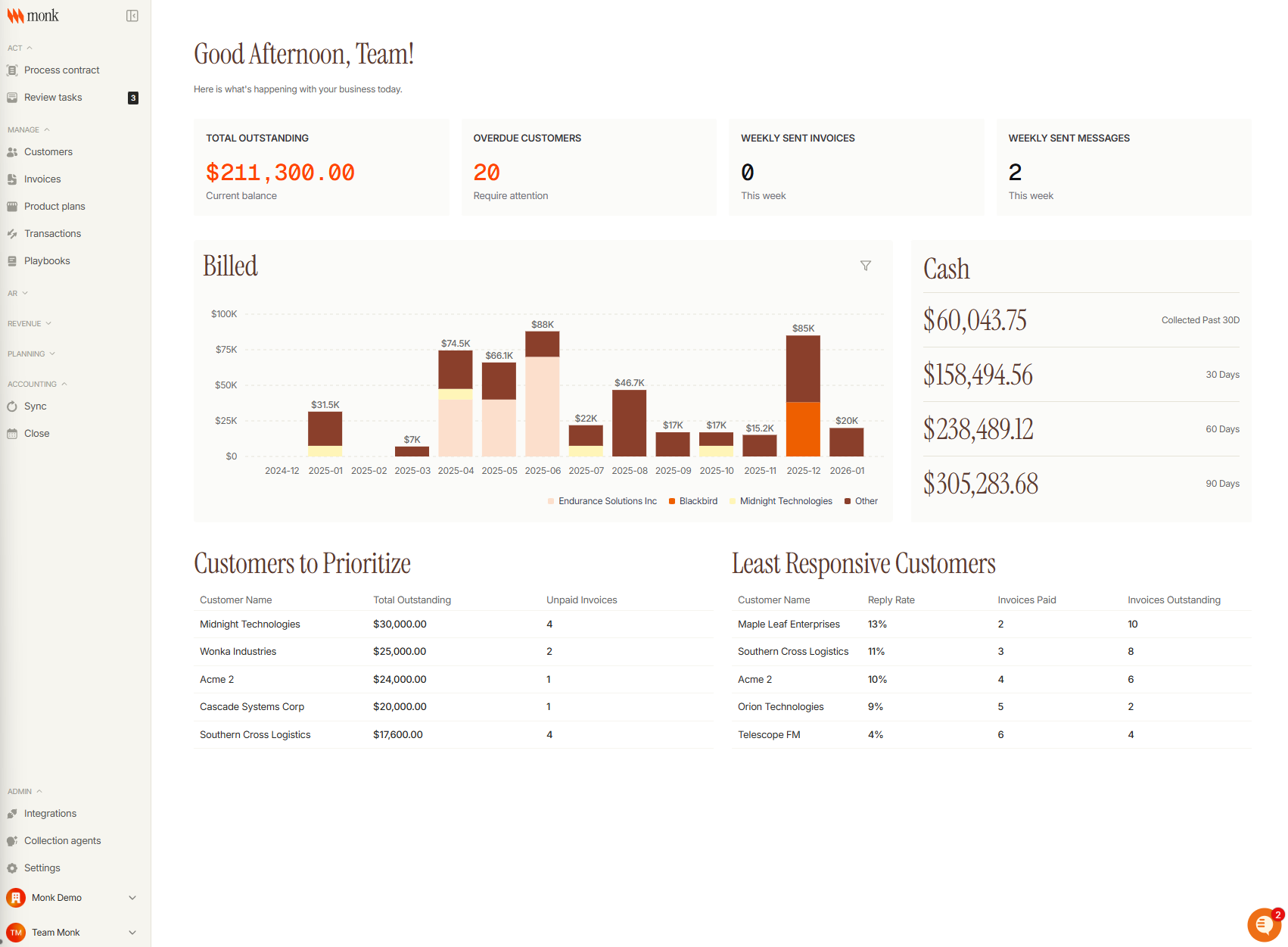
Click on
Integrationsin the bottom left of the taskbar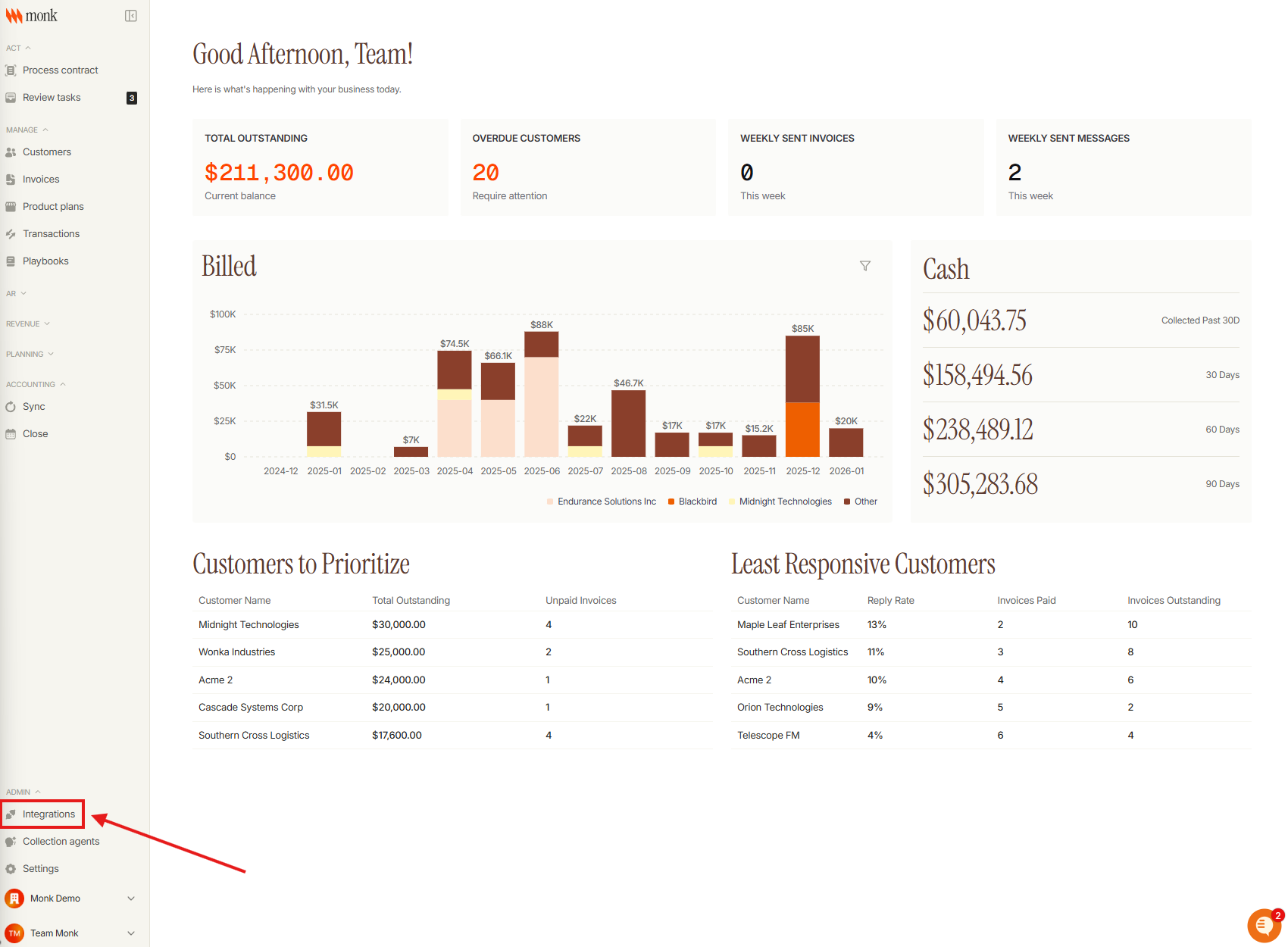
Click on the
Anroktile under Tax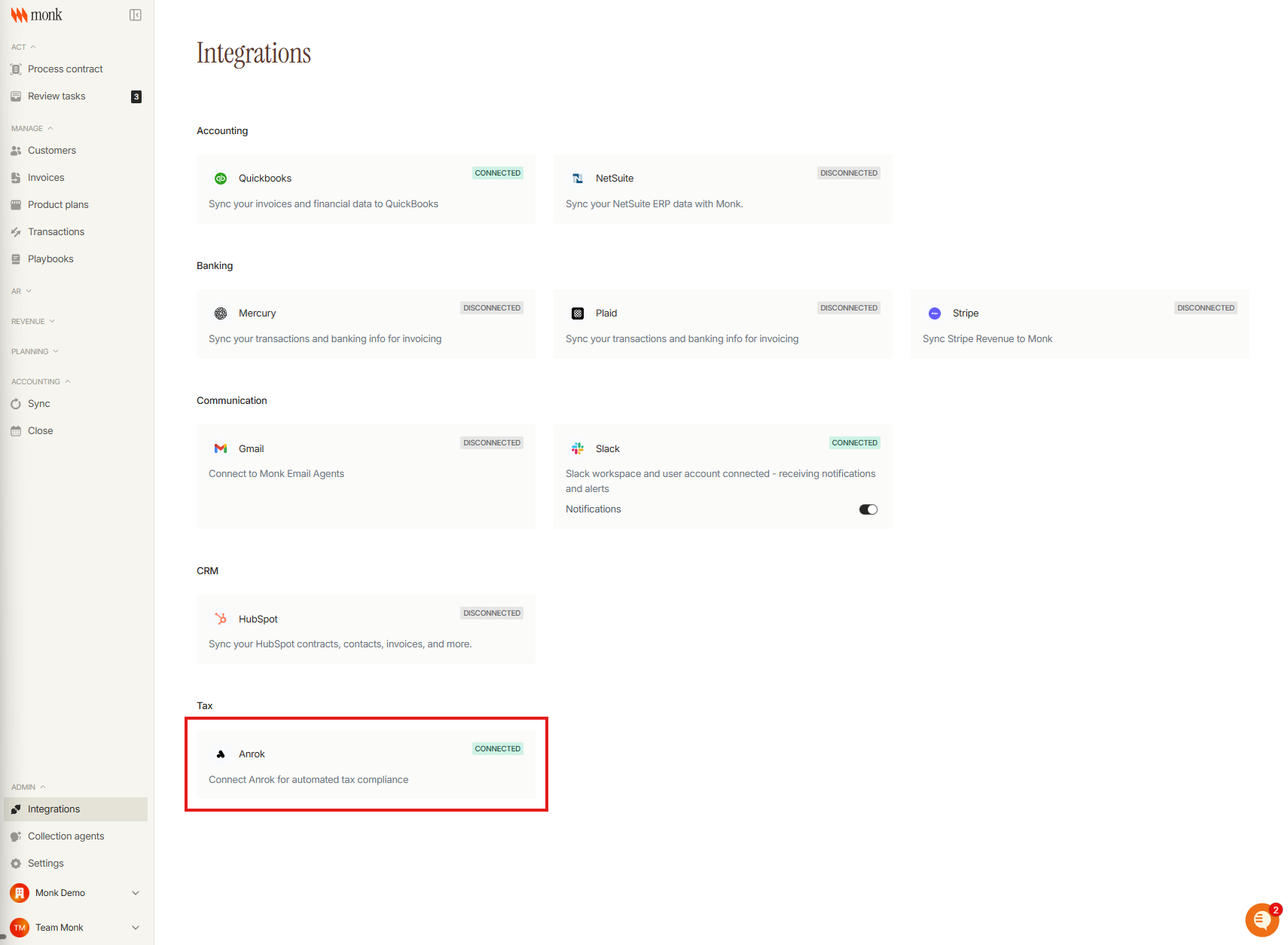
A modal will present itself where you can paste in your API key generated from Anrok and click
Connect(instructions above)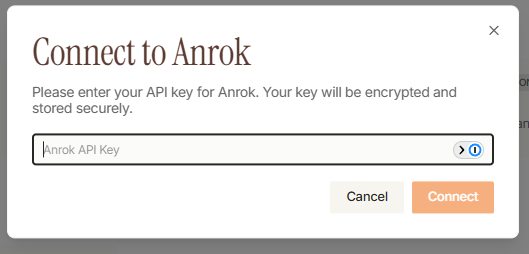
Set up at least one product mapping by click
Add Anrok Product
Paste in your Anrok Product ID that you created in Anrok (instructions above)

Name your
Tax Tagas "Default Sales Tax" and clickSave
Now your Anrok integration is complete. To ensure that you correctly account for sales tax, where applicable, across all of your customers:
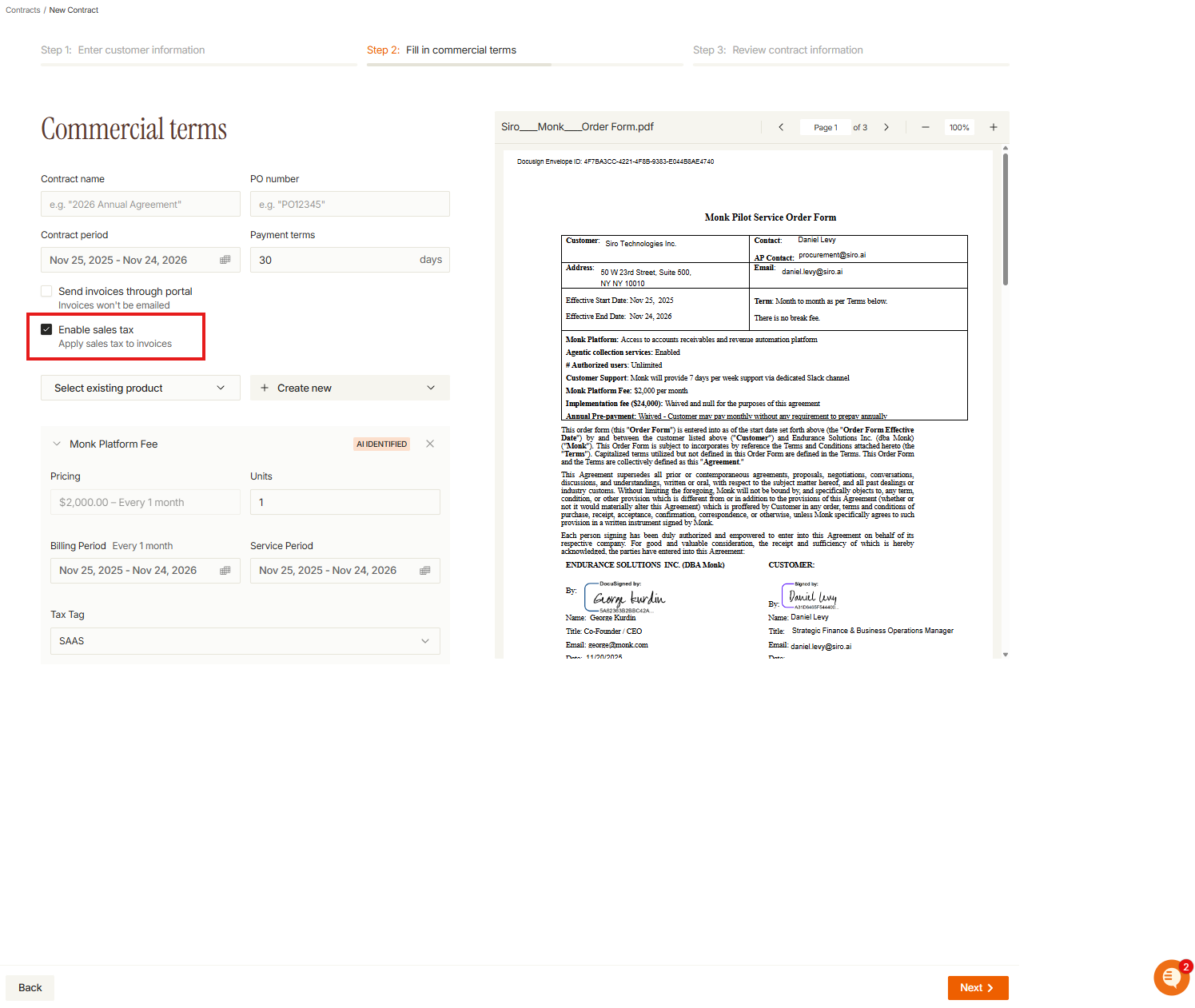
For new contracts that you upload going forward
There will be a checkbox during contract processing to Enable Sales Tax - make sure this is always checked, Anrok will automatically determine if sales tax is required
For existing customer contracts
Go to the Customer profile that you'd like to enable sales tax for
Click on the Contracts tab
Select the relevant contract
Turn the Sales Tax toggle ON
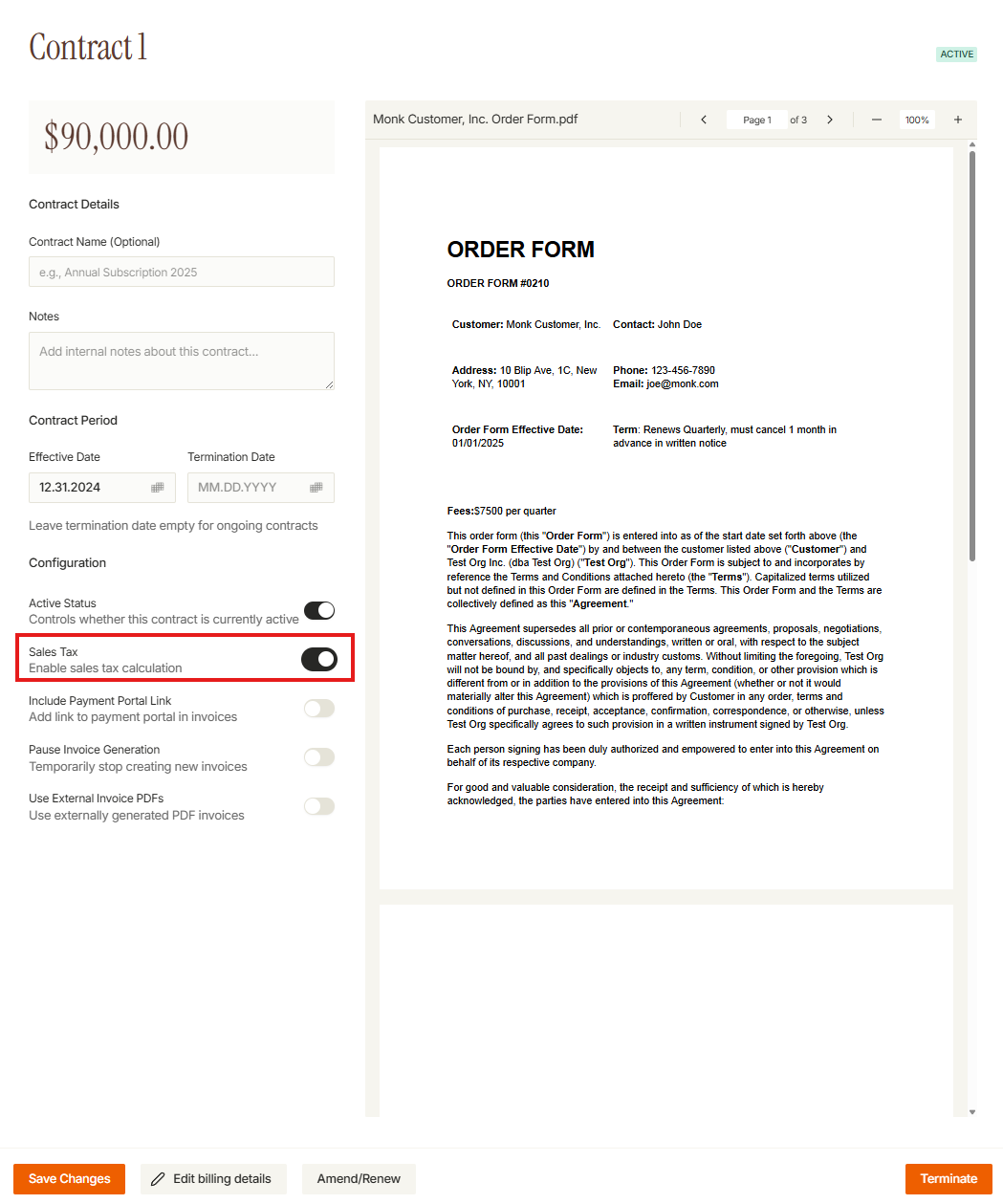
This will allow all future invoices for this contract to automatically have sales tax be applied
We recommend having Sales Tax toggled on for all contracts in Monk. Anrok will automatically determine if sales tax is required based on your customer's location and your nexus, and apply sales tax (or not) where applicable
After enabling sales tax on the relevant contracts, reach out to your Monk account manager to have Monk refresh each draft invoice with sales tax.
Non-U.S. Taxes
For non-U.S. customers, click
Customersand click on the relevant customerClick
Edit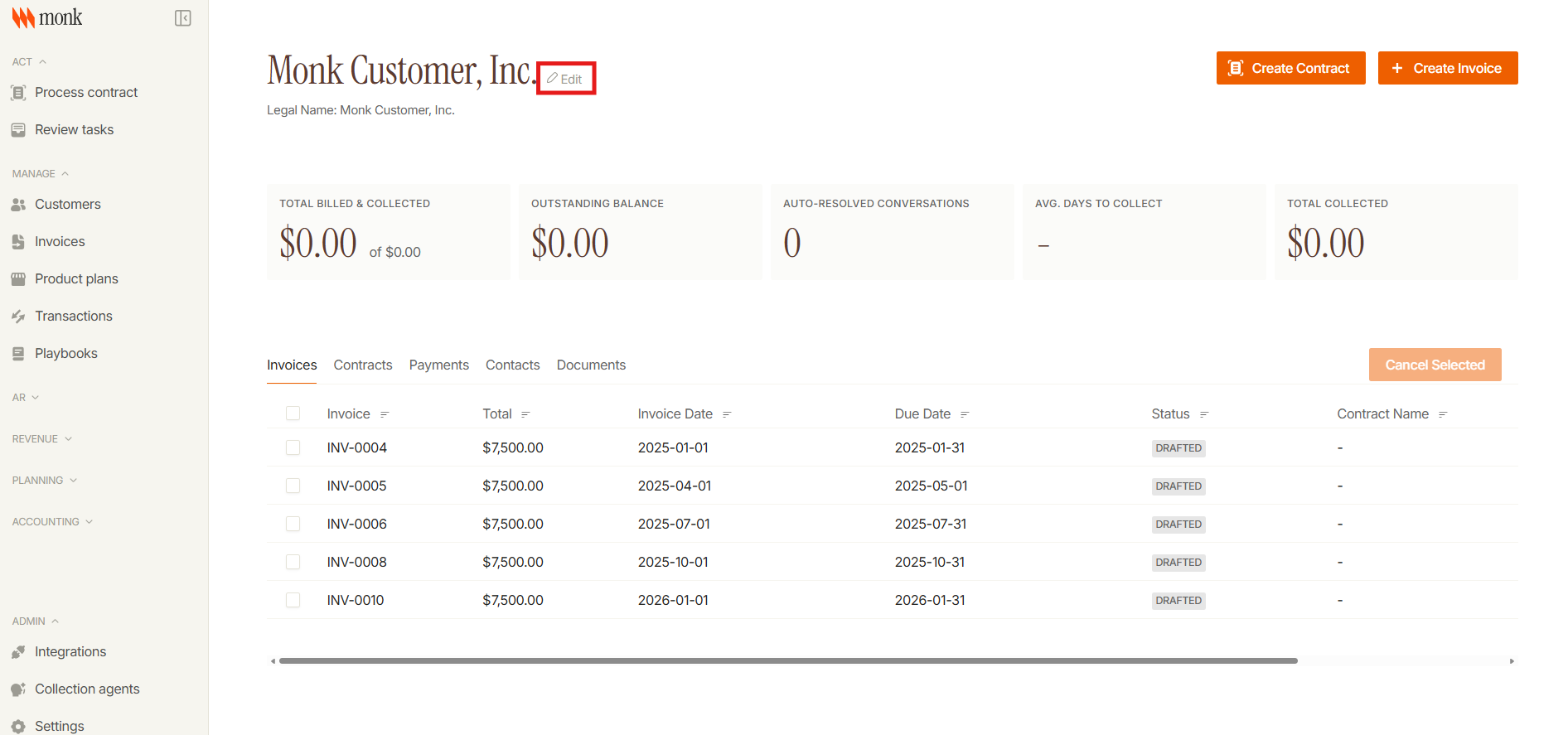
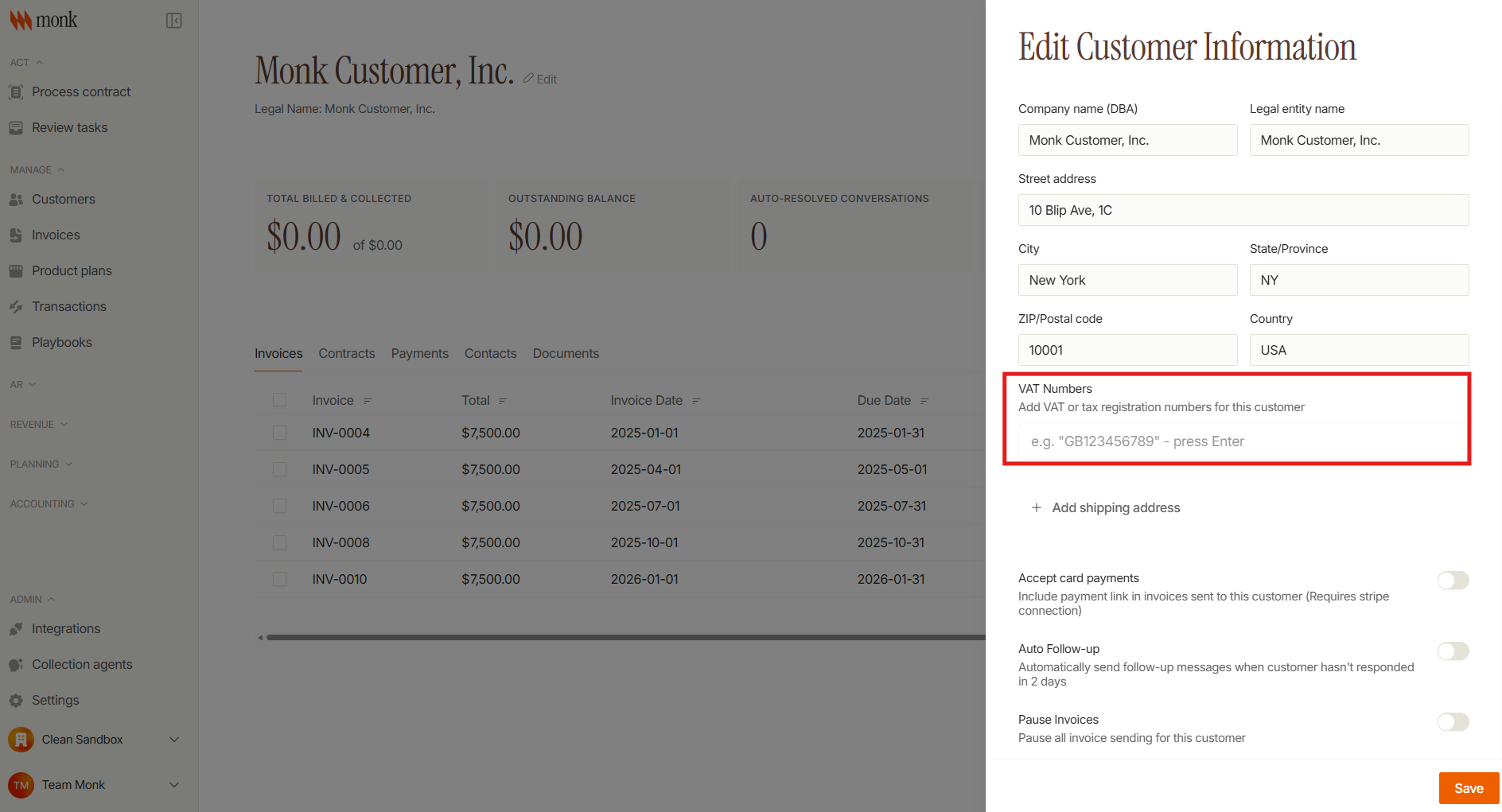
Enter VAT or tax registration number and click
Save