How to Add Products to a Contract
Last updated: January 24, 2026
Overview
Add products from your catalog to a contract and configure pricing, quantity, and billing periods during contract automation.
Prerequisites
Contract in processing state (Commercial Terms step)
Products created in Product Plans
Steps
Step 1: Open Product Selector
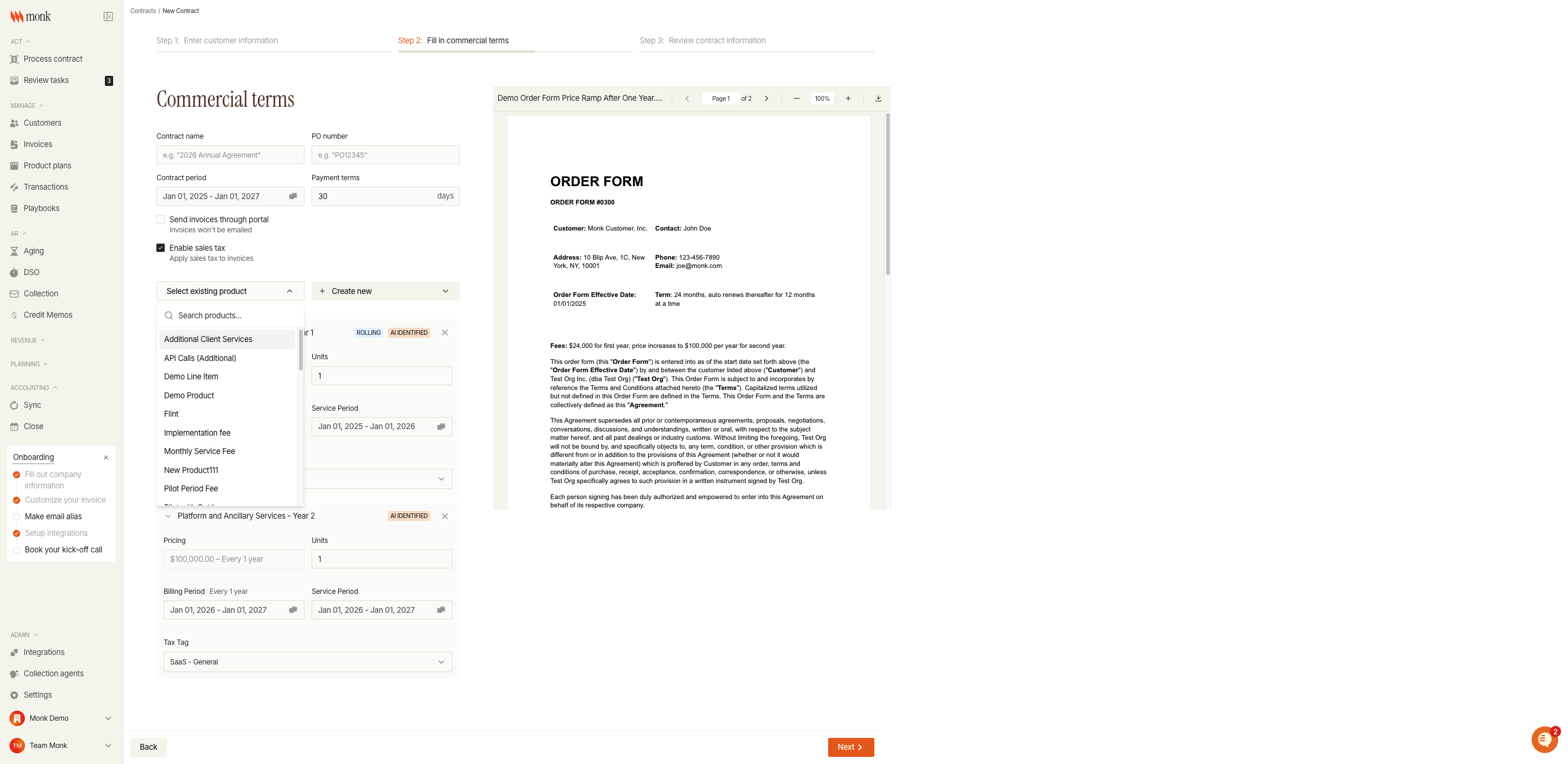
In the Commercial Terms step, click the "Select existing product" dropdown to view available products.
Step 2: Search and Select Product
Type to search products by name, then click to select.
Step 3: Configure Product Settings
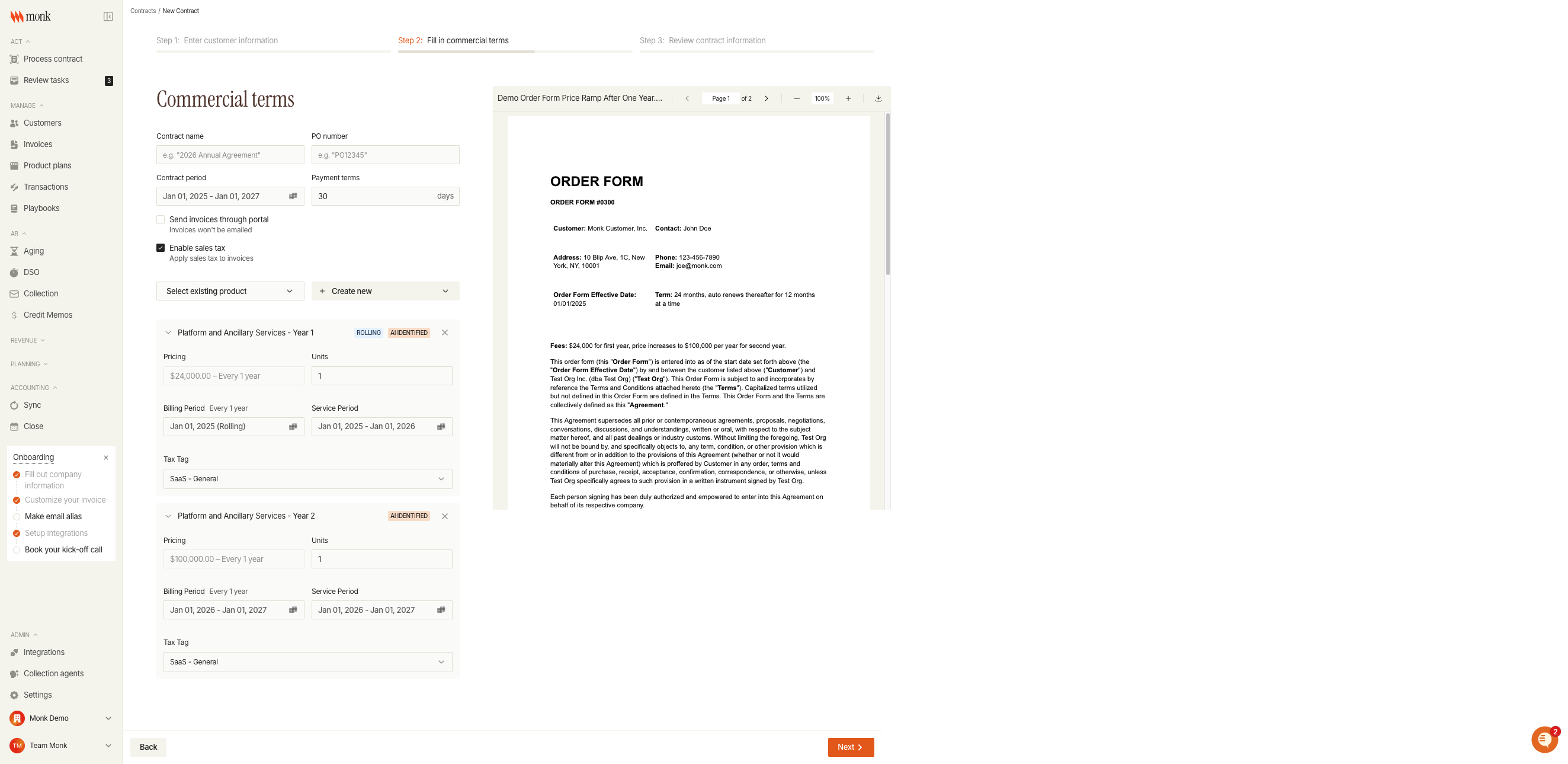
Each selected product appears as a collapsible card with configuration options.
Field | Description |
Pricing | Select from available pricing plans |
Units | Set quantity (total = price × units) |
Billing Period | When billing starts and ends |
Service Period | Revenue recognition dates |
Tax Tag | Tax classification for the line item |
Step 4: Add More Products (Optional)
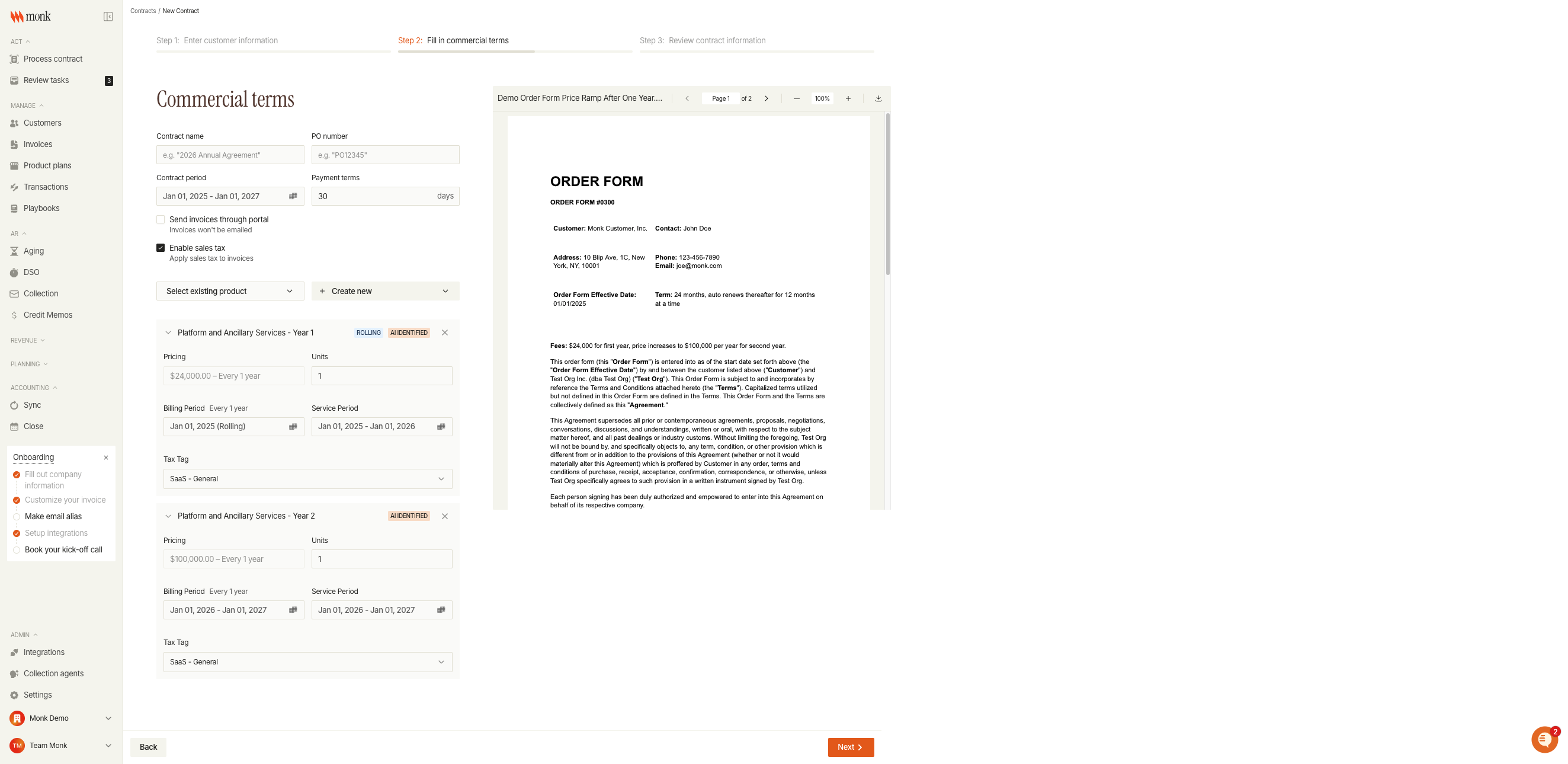
Repeat steps 1-3 to add additional products to the contract. Click the product card header to expand or collapse product details.
Step 5: Remove Products
Click the X button on any product card to remove it from the contract.
Pricing Models
Products can have different pricing structures:
Model | Description |
Flat | Fixed price per unit (e.g., $100/unit) |
Tiered | Price varies by quantity tier |
Usage | Charges based on metered usage |
Billing Modes
Mode | Description |
One-time | Single charge |
Recurring | Repeating charge at interval |
Rolling Billing Period
Select "Rolling" for the billing period end date when the billing should continue indefinitely until manually stopped. This is useful for ongoing service agreements.
Troubleshooting
No pricing options available
Cause: Product doesn't have any pricing plans configured.
Fix: Go to Product Plans and add pricing to the product.
Can't find product in dropdown
Cause: Product may not exist or search term doesn't match.
Fix: Check Product Plans or click "Create new" to add a product inline.
Pricing field is read-only
Cause: The product only has one pricing plan configured.
Fix: If you need multiple pricing options, edit the product in Product Plans to add more pricing tiers.