Customer Details Page Overview
Last updated: January 24, 2026
The Customer Details page provides a comprehensive view of all information related to a specific customer, including their billing history, contracts, payments, contacts, and documents.
Accessing the Customer Details Page
Navigate to Customers in the sidebar, then click on any customer row to open their details page.
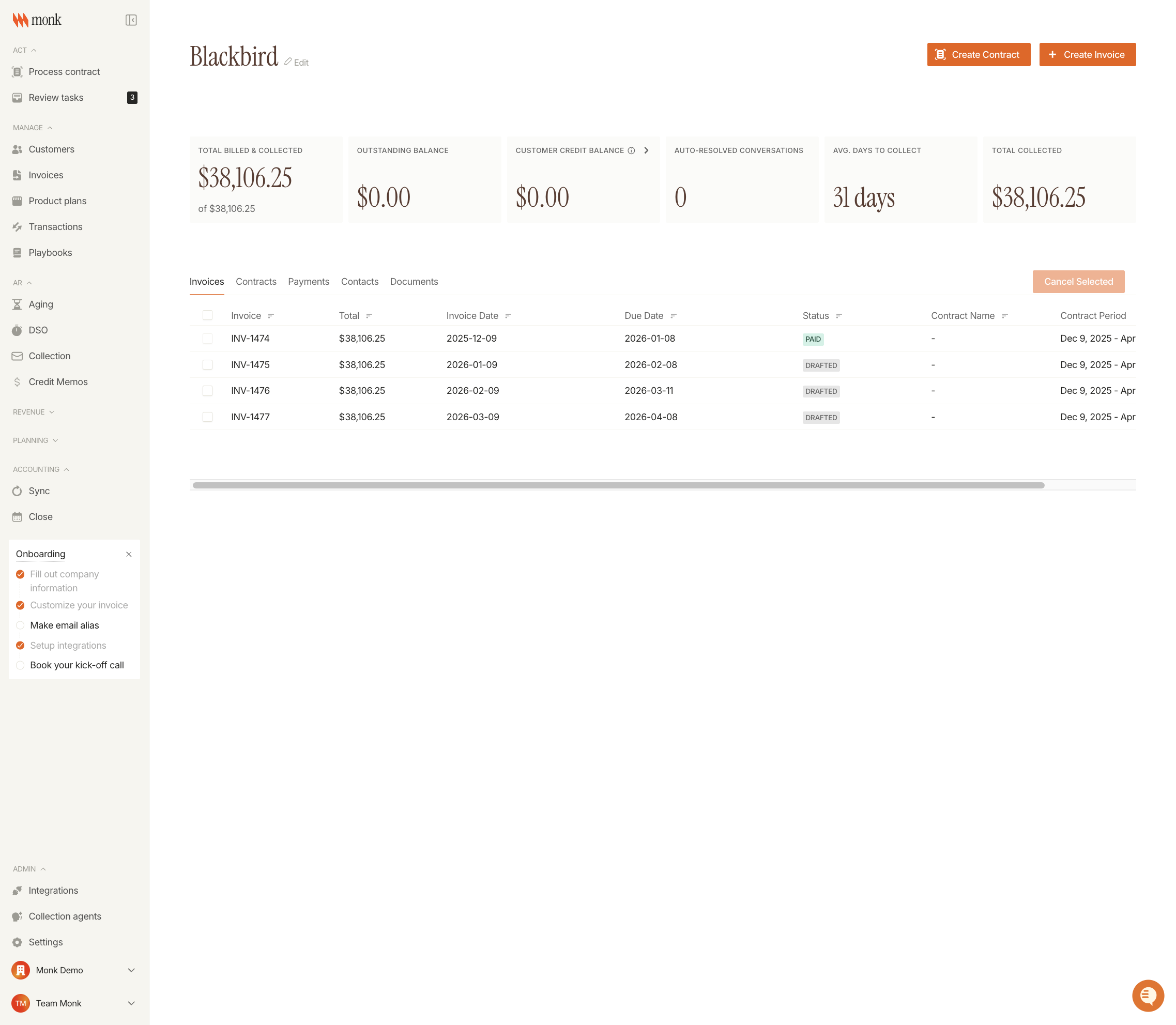
Page Structure
Customer Name - Click to view external links (e.g., View in Stripe) if the customer was imported from an integration
Edit - Click the pencil icon next to the customer name to edit customer information
Legal Name - Displayed as a subtitle
Import Source Badge - Shows the integration logo (Stripe, QuickBooks, HubSpot, or Salesforce) if the customer was imported
Status Badges:
Invoices Paused (orange) - Indicates invoice sending is paused for this customer
Portal (blue) - Indicates the customer receives invoices via portal instead of email
Action Buttons:
Create Contract - Opens the contract creation form
Create Invoice - Opens the invoice creation form
Metrics Section
Five metric cards provide quick insights into the customer:
Total Billed & Collected - Shows the amount collected out of the total billed
Outstanding Balance - Displays the current unpaid amount
Customer Credit Balance - Available credit that can be applied to future invoices (visible for select organizations)
Auto-Resolved Conversations - Number of AI collections conversations that were automatically resolved
Avg. Days to Collect - The customer's Days Sales Outstanding (DSO) metric
Total Collected - Standalone total of all payments received
Invoices Tab
View all invoices for this customer with filtering and bulk actions.
Select multiple invoices using checkboxes
Use Cancel Selected to cancel selected invoices
Filter and sort by invoice number, total, date, due date, status, contract name, and contract period
Contracts Tab
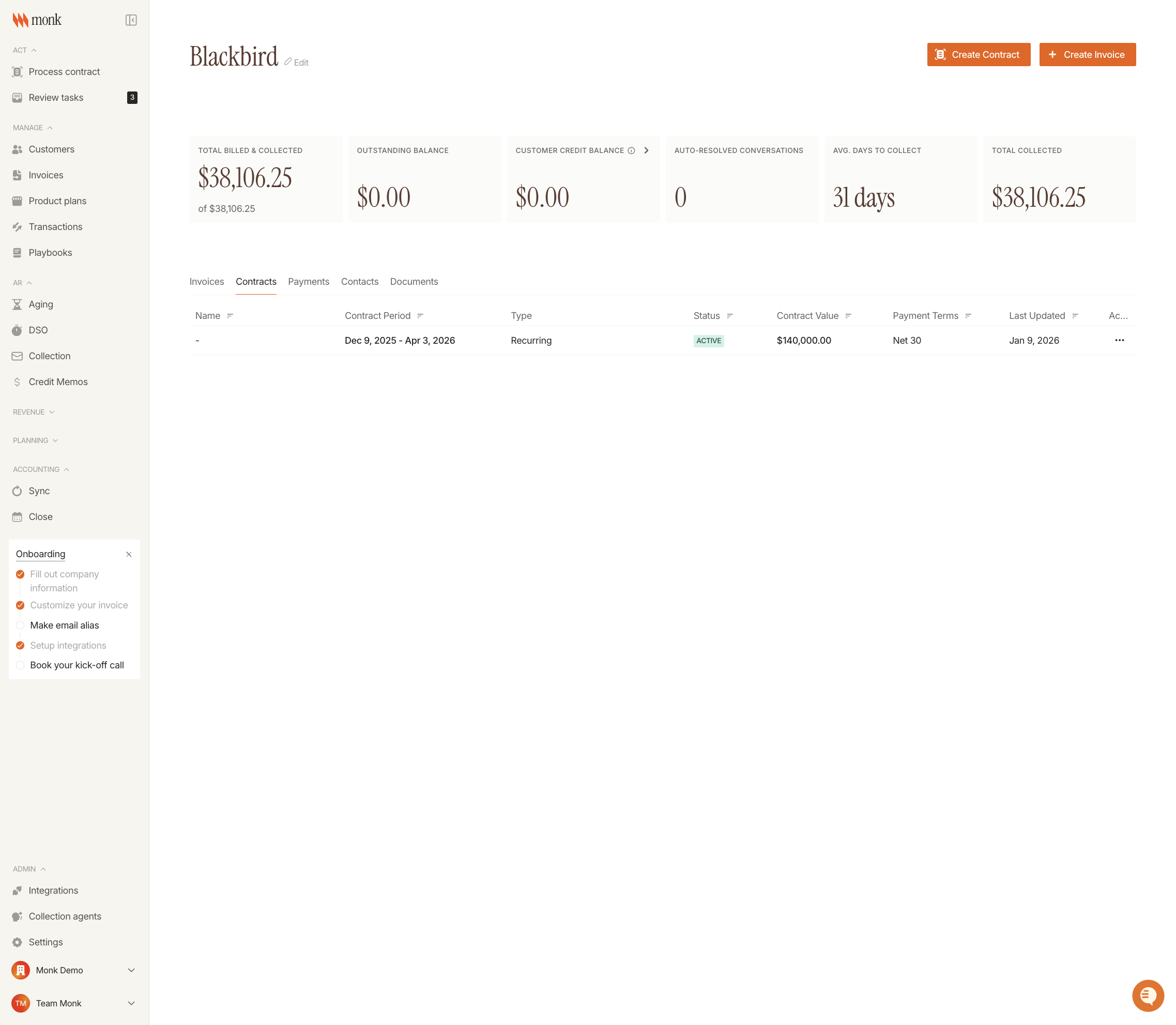
View and manage all contracts associated with this customer.
See contract period, type (Recurring/One-time), status, value, and payment terms
Access actions menu for each contract using the three-dot menu
Payments Tab
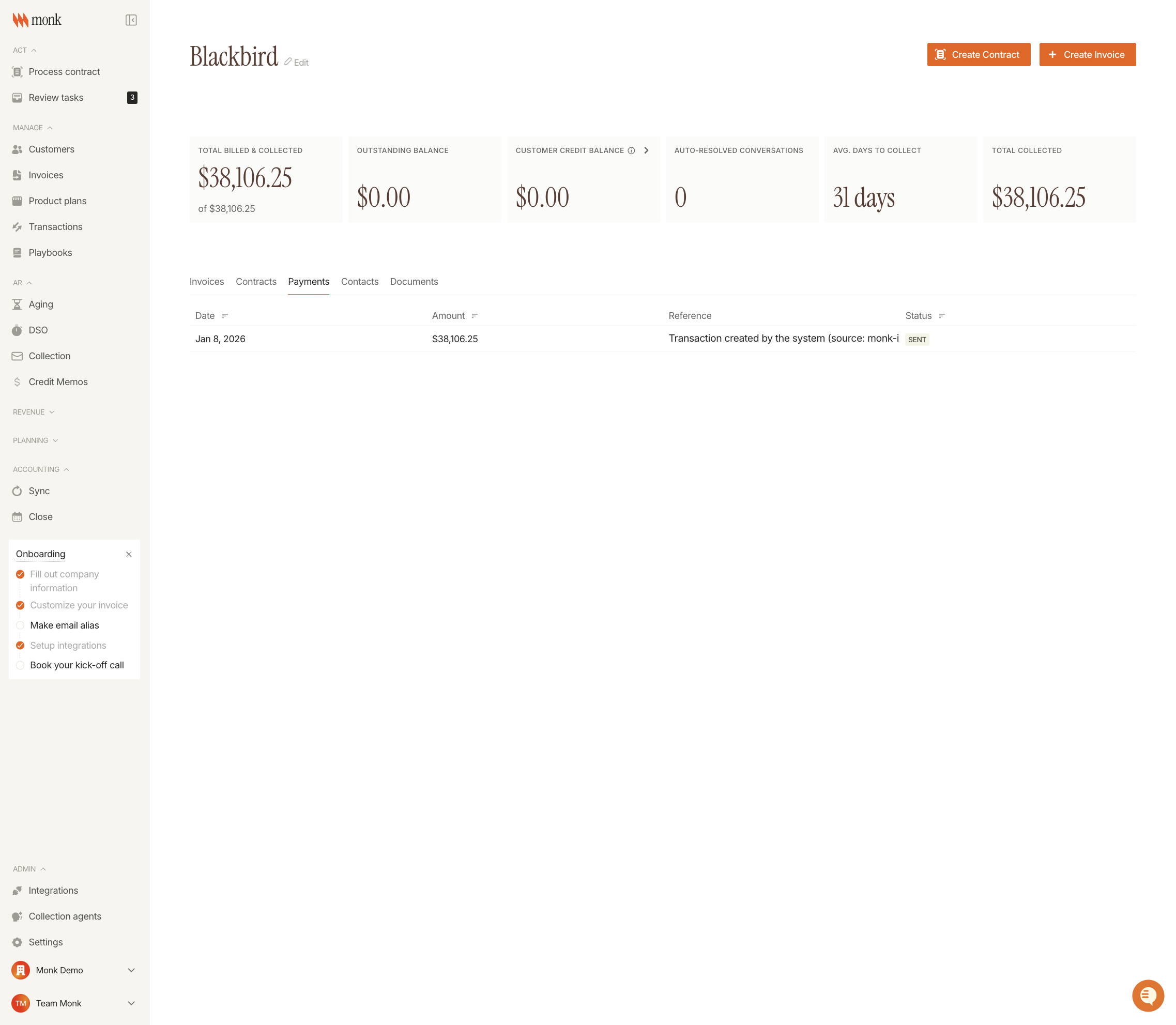
View the complete payment history for this customer.
See payment date, amount, reference, and status
Track both manual and automatic payments
Contacts Tab
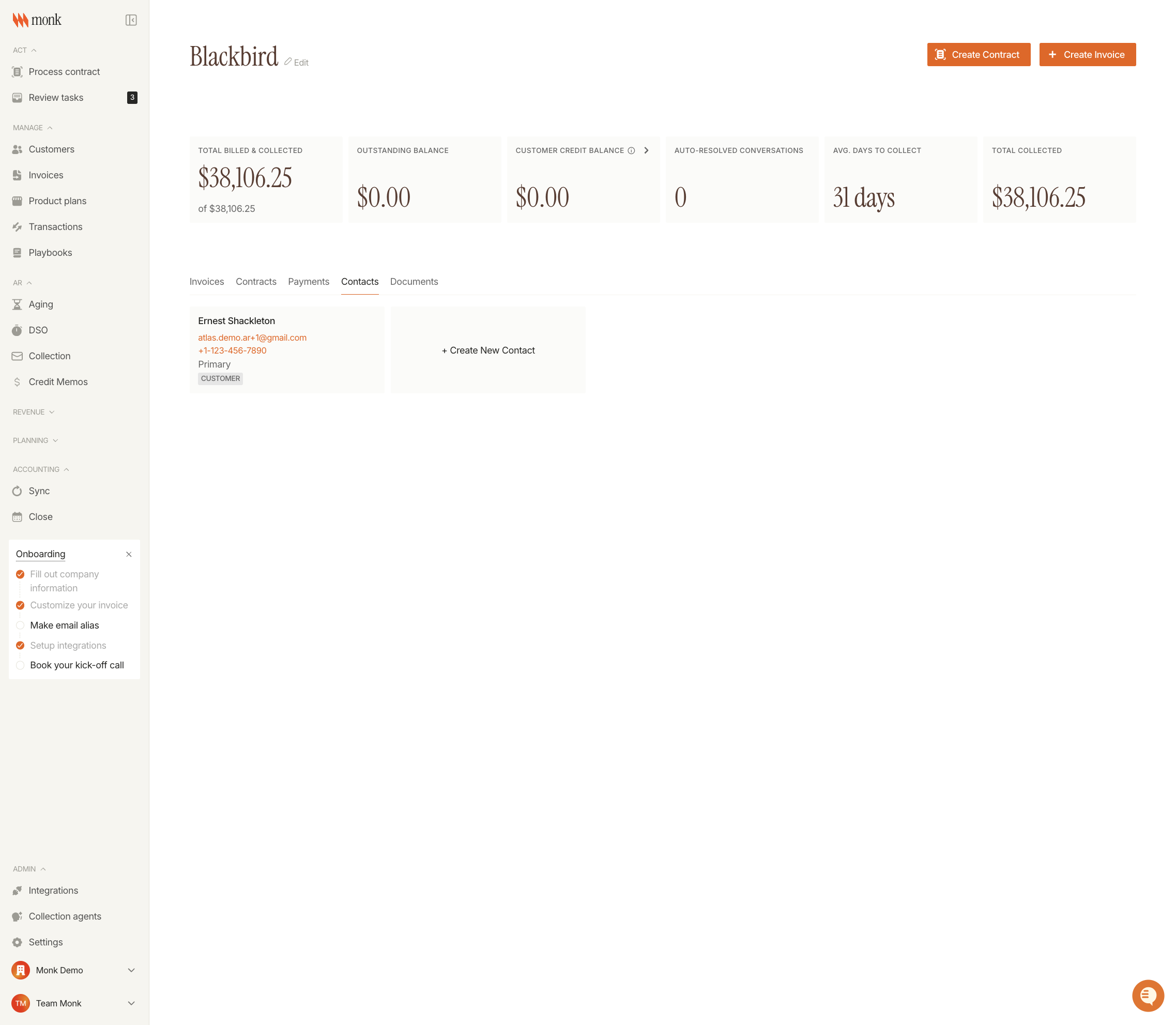
Manage contacts associated with this customer.
View contact name, email, phone number, and role
Add new contacts using the + Create New Contact button
Primary contacts are labeled for easy identification
Documents Tab
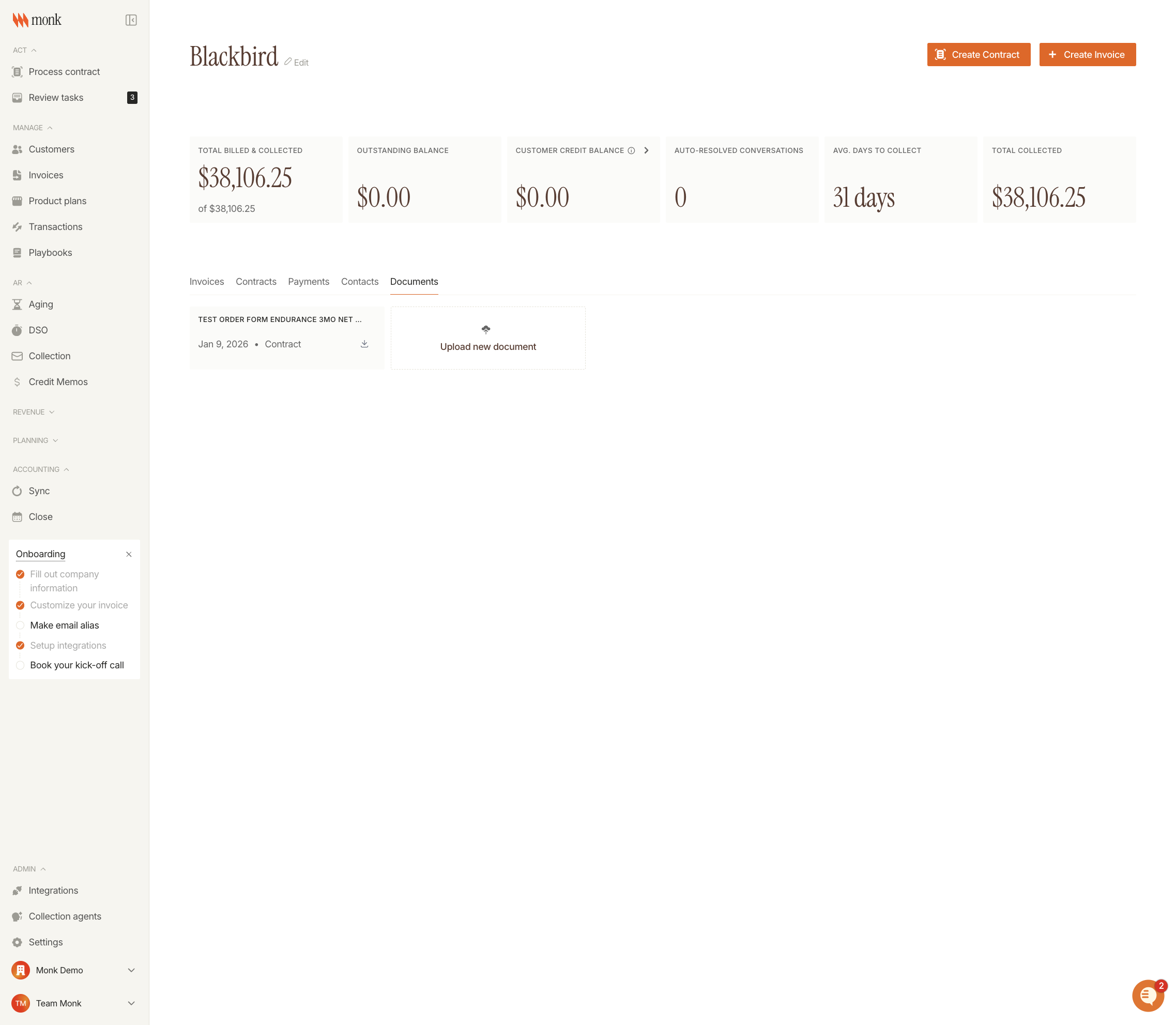
Store and access documents related to this customer.
View document name, upload date, and document type
Upload new documents using the Upload new document button
Download or delete existing documents