Invoice Payment Reconciliation
Last updated: January 16, 2026
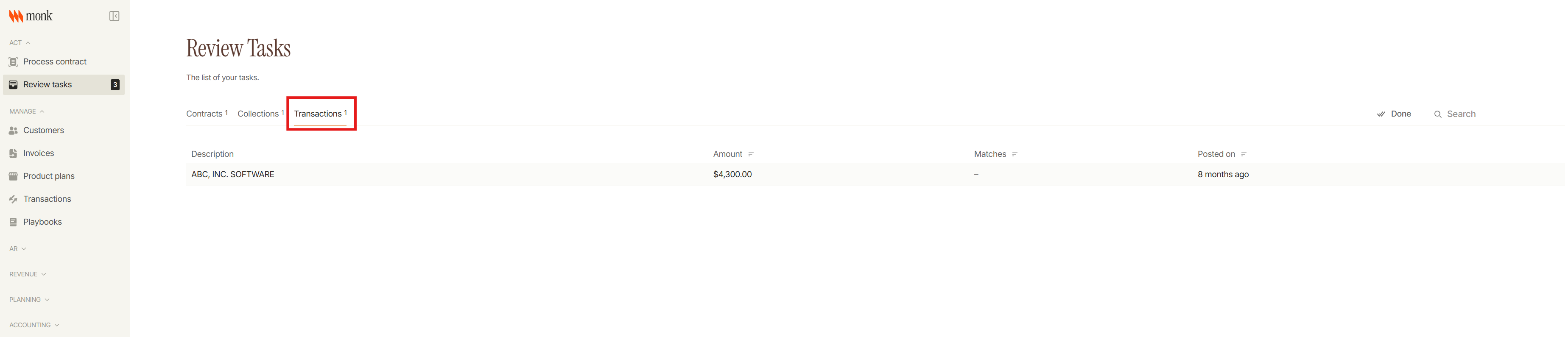
Click “Review tasks" in the left sidebar
Click “Transactions” to see the list of transactions
Click on each transaction to open the Payment Reconciliation page
Check the Payment Reconciliation page; there are 2 cases:
Invoices matched by AI
Verify that the Transaction Counterparty matches the correct customer name
Verify the Matched Invoice information: Invoice number, customer name, invoice amount, and allocated amount
If everything is correct, click Approve
If corrections are needed, click Edit & match and correct the information
Click Save and Approve
No invoices matched by AI
If there is a customer name or the invoice number in the Description and Memo:
Check the invoice number on Invoices page to find the correct customer name
If no invoice number, check the customer name on Invoices page to find the Overdue / In progress invoices
Check each invoice email thread to verify the payments for each invoice
If there is no customer name or invoice number in the Description and Memo:
Search the transaction amount on the Invoices page to find the Overdue / In Progress invoices that match the amount
Check the email threads for those invoices to see if the customer sent a payment confirmation or remittance
After finding the correct customer and invoice number, click Edit & match
Select the correct Transaction Counterparty that matches the customer name, and select the correct Invoices from the dropdown
Double check that the Allocated amount = Invoice amount = Transaction amount
Click Save and Approve