Month-End Close Guide
Last updated: January 24, 2026
Overview
The month-end close feature in Monk helps you formally close accounting periods, track key financial balances, and prevent accidental backdating of invoices into closed periods. This guide walks you through the process of closing a month-end period.
Prerequisites
All invoices for the period should be reviewed and reconciled before closing
Outstanding invoices should be addressed or acknowledged
Accessing Month-End Close
Navigate to Accounting > Close in the left sidebar to access the month-end close page.
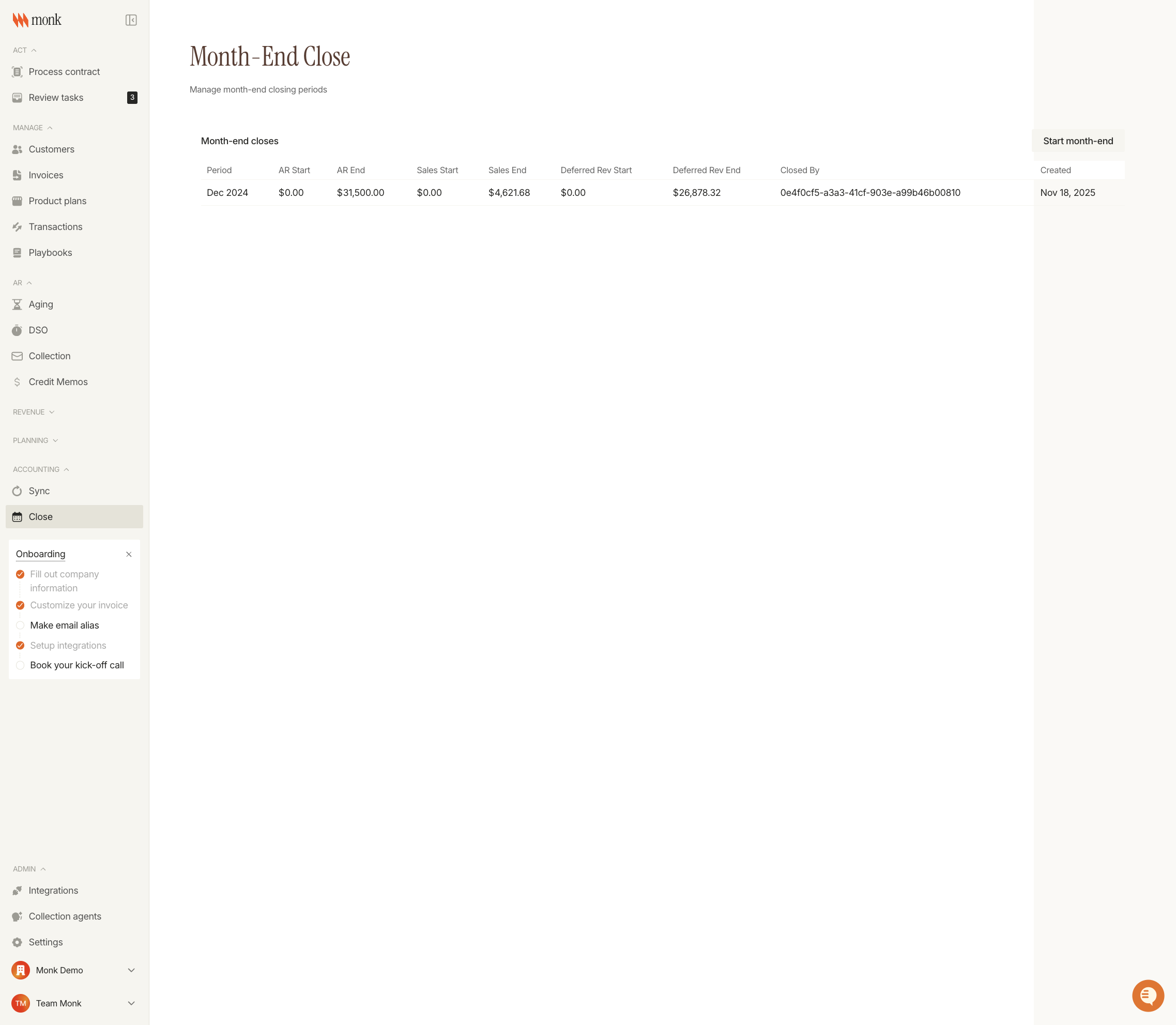
The page displays all previously closed periods with key financial balances:
Column | Description |
Period | The closed month (e.g., Dec 2024) |
AR Start | Accounts receivable balance at period start |
AR End | Accounts receivable balance at period end |
Sales Start | Sales balance at period start |
Sales End | Sales balance at period end |
Deferred Rev Start | Deferred revenue balance at period start |
Deferred Rev End | Deferred revenue balance at period end |
Closed By | User ID of who closed the period |
Created | Date when the period was closed |
Closing a Month-End Period
Step 1: Select Period
Click the Start month-end button to open the month-end close wizard.
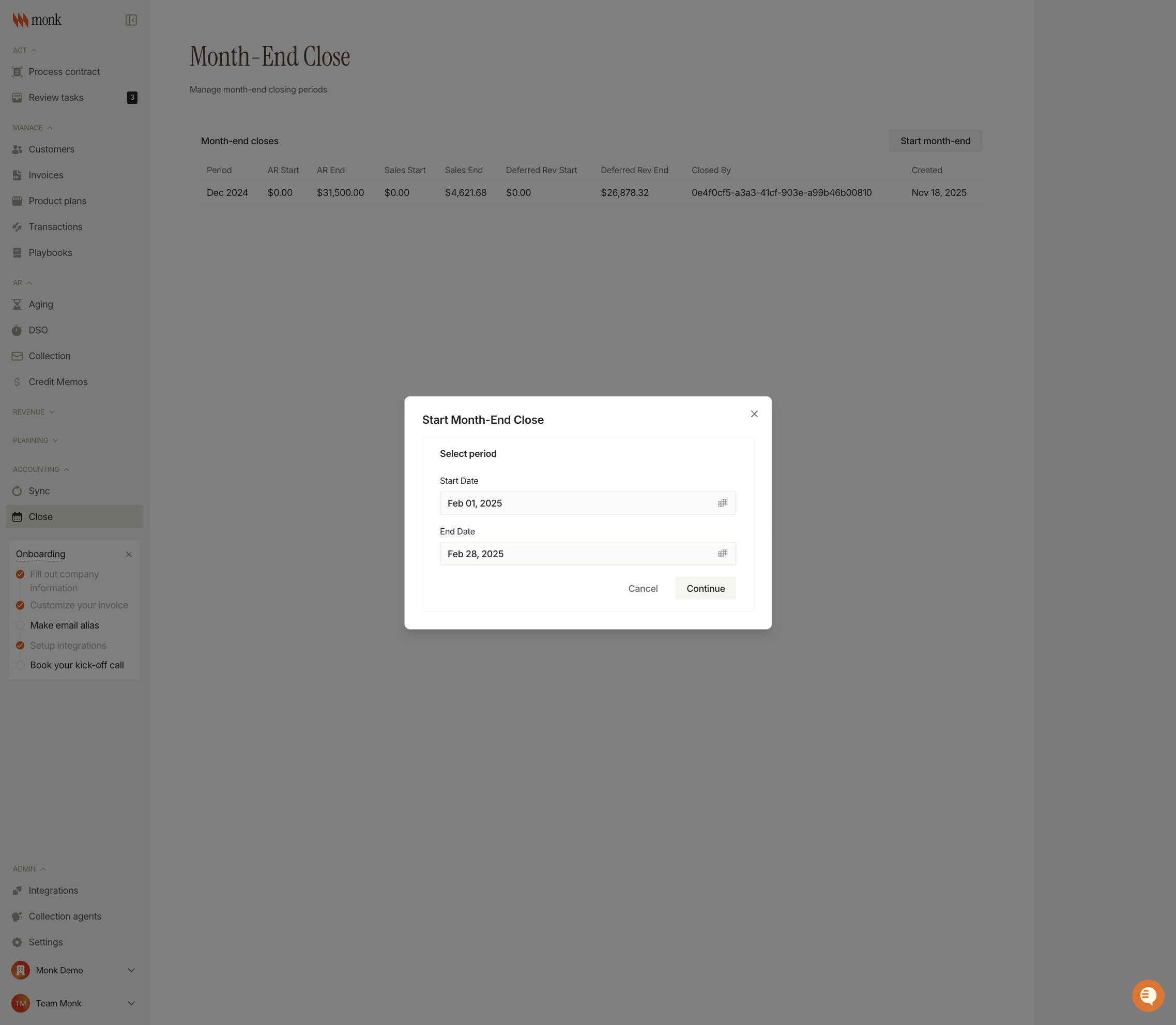
Select the start and end dates for the period you want to close. Monk automatically suggests the next unclosed period based on your previous closes.
Important: The selected period cannot overlap with any existing closed periods. If an overlap is detected, you'll see an error message and need to choose different dates.
Step 2: Review Outstanding Invoices
After selecting the period, review any outstanding invoices dated within the selected timeframe.
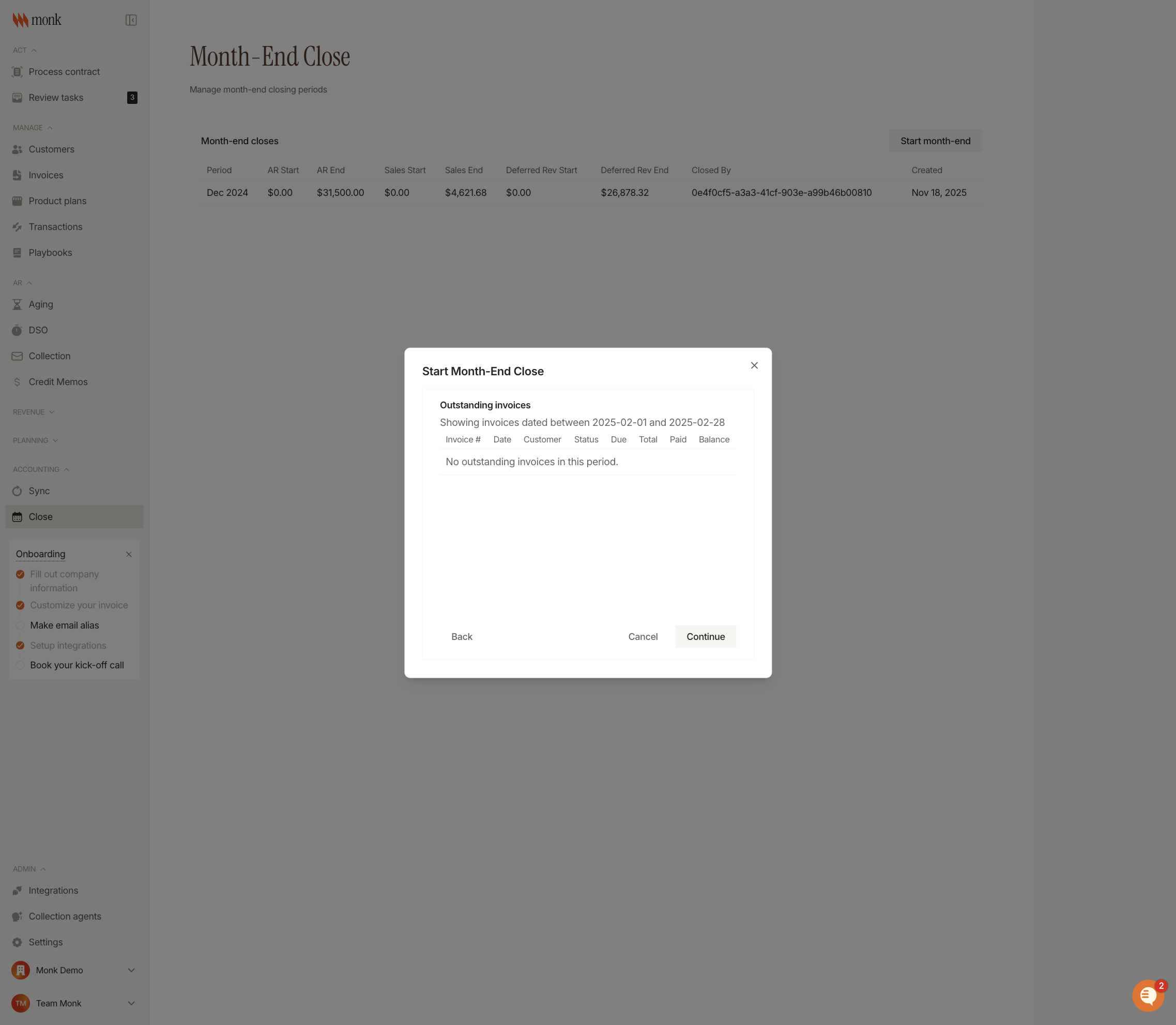
If outstanding invoices exist: Check the acknowledgment box to confirm you understand some invoices remain unpaid before continuing. Clicking on any invoice row opens the invoice details in a new tab for review.
If no outstanding invoices: You can proceed directly to the confirmation step.
Step 3: Confirm and Close
Review the closing summary before finalizing.
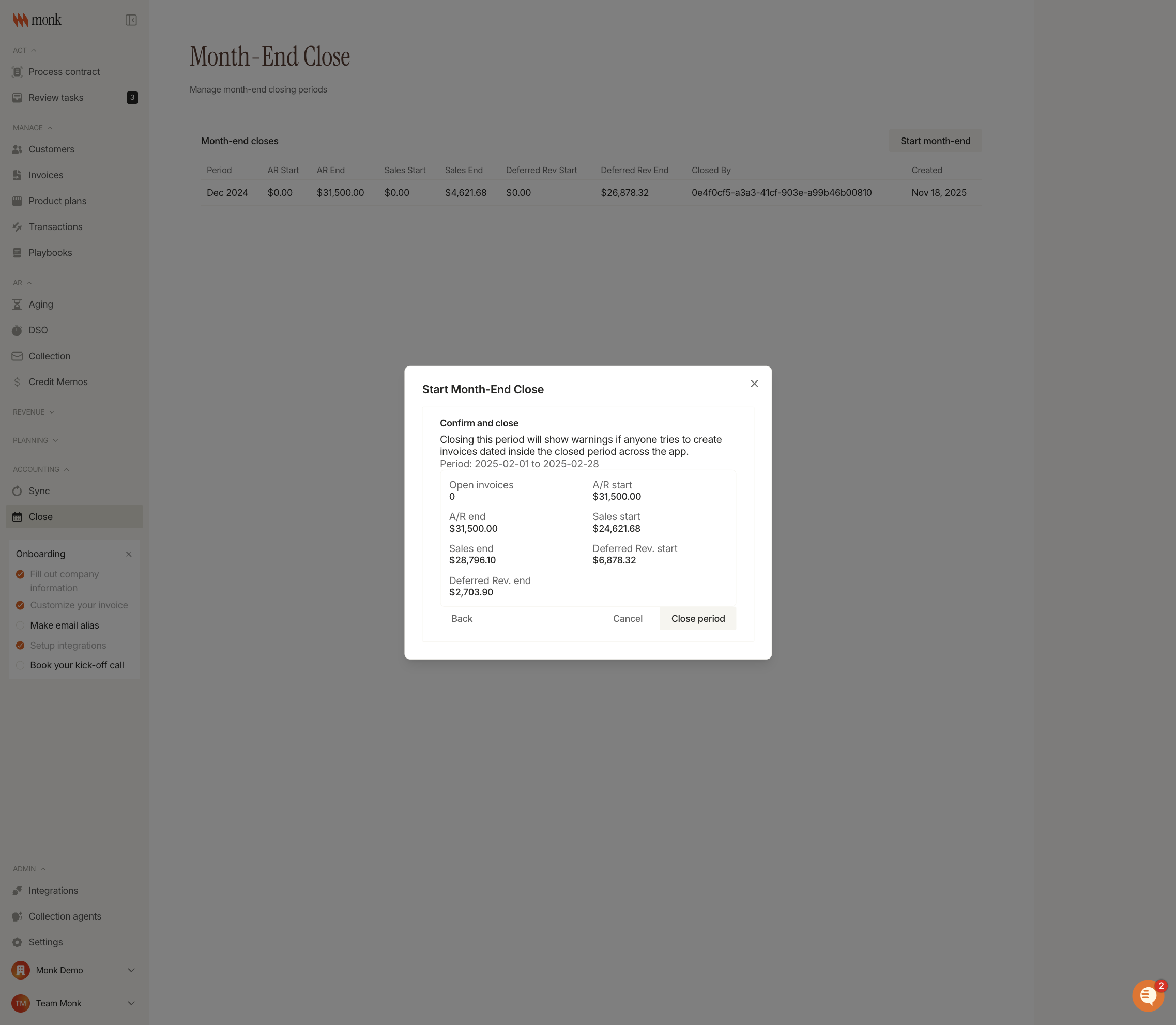
Click Close period to finalize. This action:
Records the closing balances in your month-end close history
Enables warnings for any future attempts to create or modify invoices dated within the closed period
After Closing a Period
Once a period is closed:
Warning on backdated invoices: Users will see a warning modal if they try to create or edit an invoice with a date that falls within a closed period
Audit trail: The close is recorded with the user ID and timestamp
Immutable record: Closed period records cannot be modified or deleted
Troubleshooting
"Selected period overlaps an existing closed period"
Cause: The dates you selected include days that are already part of a closed period.
Fix: Adjust the start and/or end dates to avoid overlapping with previously closed periods.
Cannot continue from outstanding invoices step
Cause: There are invoices with remaining balances in the selected period.
Fix: Either:
Collect payments on the outstanding invoices before closing
Check the acknowledgment box to proceed with outstanding invoices
Warning appears when creating new invoices
Cause: You're trying to create an invoice dated within a closed period.
Fix: Either:
Use a date after the closed period
Proceed with the warning if backdating is intentional (requires confirmation)