How to Sync Customers from Stripe
Last updated: January 24, 2026
Overview
Configure automatic customer synchronization between Stripe and Monk. When enabled, customer data from your connected Stripe account is imported and kept in sync with Monk.
Prerequisites
Stripe integration connected to your Monk account
Steps
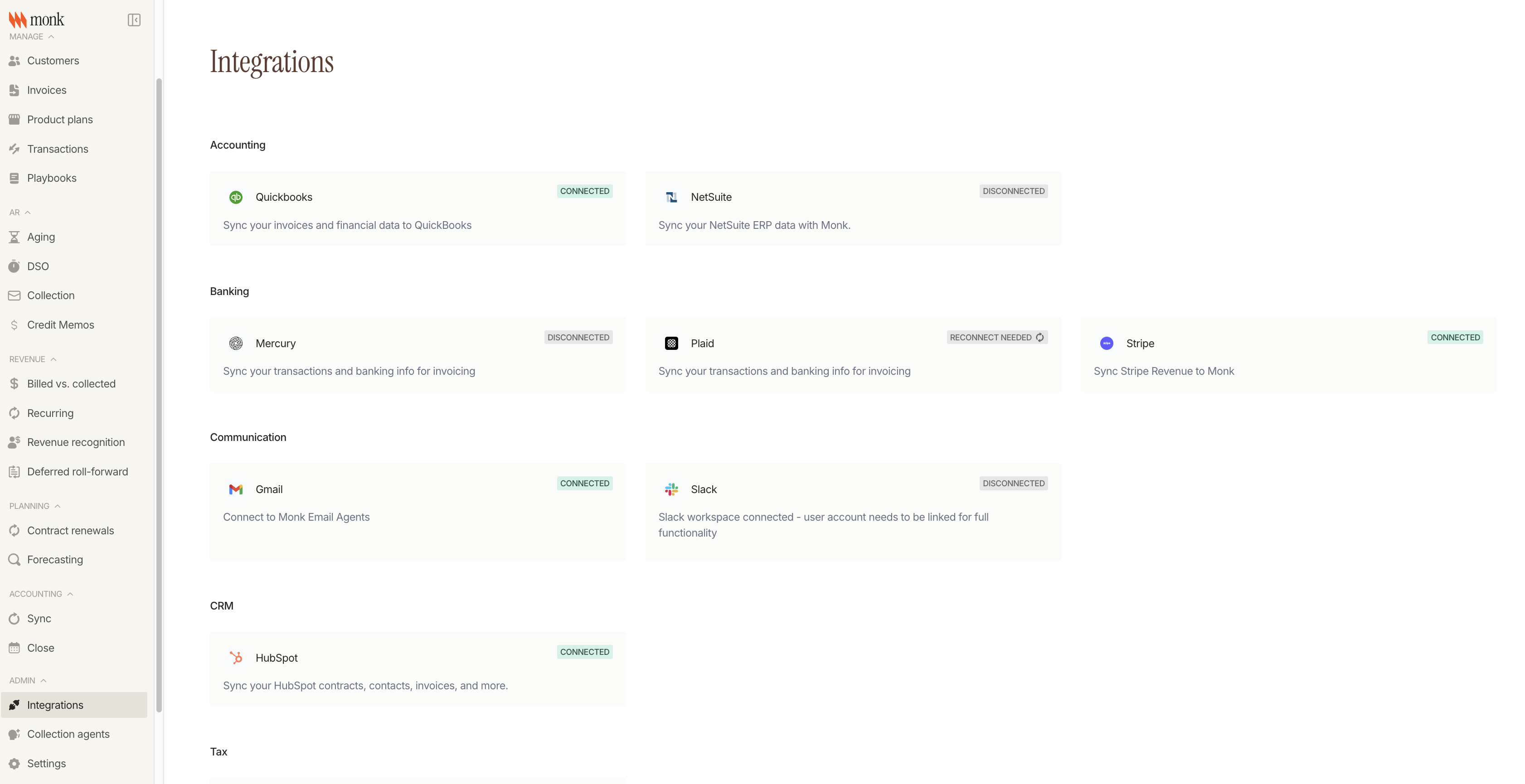
Step 1: Navigate to Stripe Settings
Go to Integrations in the sidebar, then select Stripe from the list.
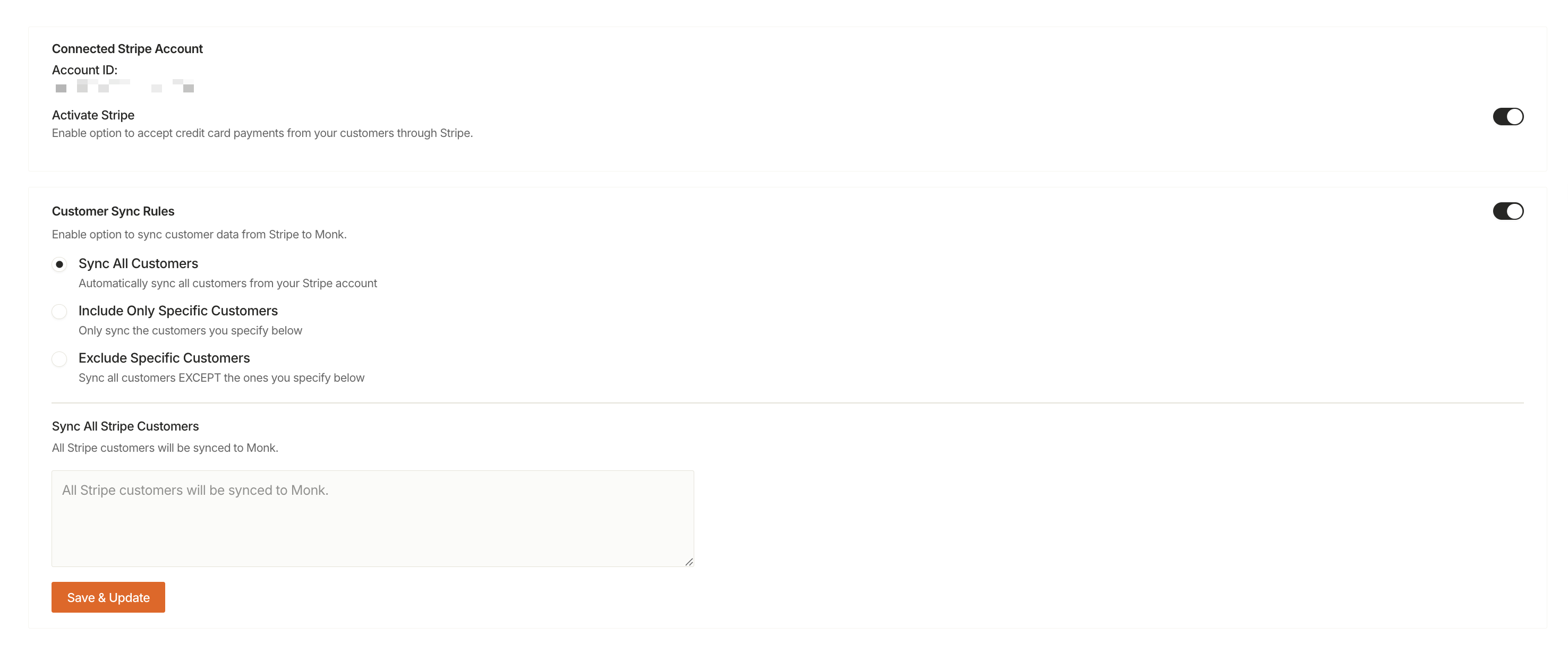
Step 2: Enable Customer Sync
In the Customer Sync Rules card, toggle the sync switch to enable automatic customer synchronization.
Step 3: Choose Your Sync Mode
Select how customers should be synced from Stripe:
Mode | Description | When to Use |
Sync All Customers | Automatically sync every customer from Stripe | Default for most teams |
Include Only Specific Customers | Only sync customers you specify by ID | When you need a subset of Stripe customers |
Exclude Specific Customers | Sync all customers EXCEPT those specified | When most customers should sync, with a few exceptions |
Step 4: Enter Customer IDs (If Applicable)
For Include Only or Exclude modes, enter the Stripe customer IDs in the text area:
Format:
cus_xxx(e.g.,cus_abc123)Multiple IDs: Separate with commas (e.g.,
cus_abc123, cus_def456)
Step 5: Save Changes
Click Save & Update to apply your sync configuration. Changes take effect immediately.
Troubleshooting
Customer not appearing in Monk
Cause: Customer may be excluded by your sync rules, or the sync hasn't completed yet.
Fix:
Check your sync mode settings
If using Include/Exclude mode, verify the customer ID is correctly configured
Wait a few minutes for sync to complete
Invalid customer ID error
Cause: Customer ID format is incorrect.
Fix: Ensure IDs start with cus_ followed by letters and numbers (e.g., cus_abc123).
Sync toggle not saving
Cause: May require a connected Stripe account first.
Fix: Verify your Stripe account is connected in the "Connected Stripe Account" section above the sync rules.