Auto-Pay Setup Guide
Last updated: January 24, 2026
Enable automatic invoice payments for your customers. When Auto-Pay is enabled, your customers can save their payment method and have future invoices charged automatically.
Prerequisites
Stripe must be connected in your integration settings
Auto-Pay feature must be enabled for your organization (contact support if you don't see the option)
How to Enable Auto-Pay for a Customer
Go to Customers and select the customer
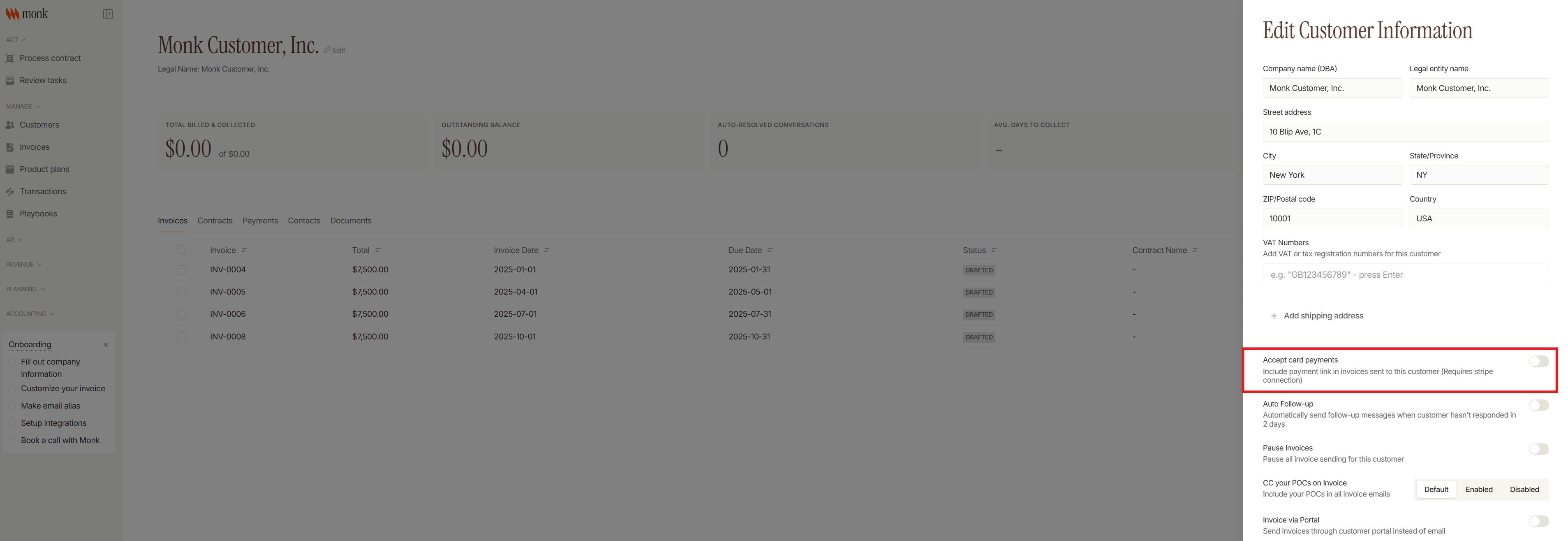
Open customer Settings
Enable Accept card payments
Enable Allow Auto Pay enrollment (appears after enabling card payments)
Save changes
Once enabled, this customer will see the Auto-Pay checkbox when paying invoices through the payment portal.
How It Works
Customer Enrollment
When your customer pays an invoice through the payment portal:
They select Pay with Card or Pay with Bank Account
They check Enable Auto Pay
They see a disclosure with billing frequency, outstanding invoices, and next invoice date
They complete payment through Stripe Checkout
Their payment method is securely saved
Automatic Charging
Auto-Pay runs daily at 6:00 AM EST. The system automatically charges invoices that:
Have an invoice date of today or earlier
Are on contracts where Auto-Pay is enabled
Aren't paused or already paid
Payment Processing Times
Credit/Debit Card - Instant
ACH Bank Transfer - Usually under 4 business days
Email Notifications
Your customers automatically receive:
Payment Confirmation - After successful charge (includes receipt link + disable button)
ACH Processing - When bank payment is initiated (before settlement)
Payment Failed - If charge fails (includes link to pay manually)
What Happens When a Payment Fails
Auto-Pay is disabled on the contract (prevents repeated failed attempts)
Customer receives the invoice email with a failure banner
Activity is logged in the contract's activity feed
Common failure reasons: card declined, insufficient funds, expired card, bank account closed
FAQs
Which customers can use Auto-Pay?
Only customers with both "Accept card payments" and "Allow Auto Pay enrollment" enabled in their settings.
Can customers use ACH for Auto-Pay?
Yes. Both card and ACH bank transfers are supported.
What time are invoices charged?
Daily at 6:00 AM EST.
Will paused invoices be charged?
No. Paused invoices are skipped by Auto-Pay.
Can I manually trigger an Auto-Pay charge?
No. Auto-Pay runs on the daily schedule. For immediate payment, share the payment portal link with your customer.
Need help? Contact Monk support.