Connecting Integrations
Last updated: January 23, 2026
Monk integrates with your existing tools to streamline your billing and collections workflows. This guide covers how to access the Integrations page and connect each available integration.
Accessing the Integrations Page
Log in to your Monk account
In the left sidebar, scroll down to the Admin section
Click Integrations
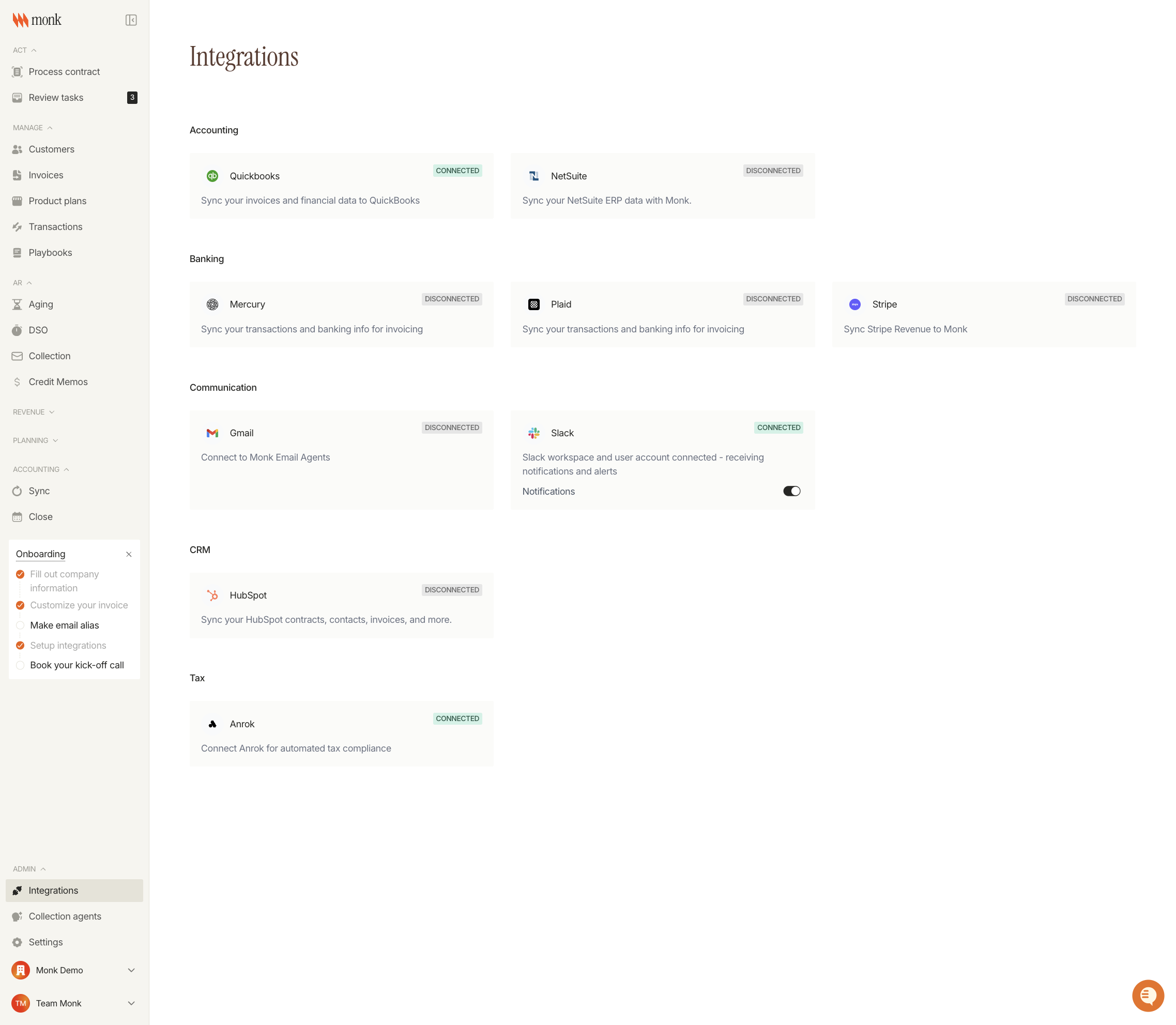
You'll see all available integrations organized by category.
Integration Categories
Monk organizes integrations into the following categories:
Category | Available Integrations |
Accounting | QuickBooks, NetSuite |
Banking | Mercury, Plaid, Stripe |
Communication | Gmail, Slack |
CRM | HubSpot |
Tax | Anrok |
Connection Status
Each integration card displays its current connection status:
Connected (green badge) - The integration is active and syncing data
Disconnected (gray badge) - The integration is not connected
Managing Connected Integrations
After connecting an integration, click on its card to access the details page where you can:
View connection status and account information
Configure sync settings and preferences
Pull data from the connected service
Manage account mappings
Troubleshooting
Integration Won't Connect
If you're having trouble connecting an integration:
Ensure you have the correct credentials for the third-party service
Check that you have admin permissions in the external service
Try disconnecting and reconnecting the integration
Clear your browser cache and try again
Data Not Syncing
If data isn't syncing as expected:
Verify the integration shows as Connected
Check the integration's configuration settings
Look for any error messages on the integration details page
Contact Monk support if the issue persists
Need Help?
If you have questions about integrations or need assistance connecting a specific service, please contact our support team.