Agent Configuration Guide
Last updated: January 24, 2026
Overview
Configure your Monk collection agent to match your accounts receivable workflow. This guide covers all settings available in the Intelligent Collections Settings page, including follow-up timing, agent identity, and escalation rules. Properly configured agents help reduce DSO while maintaining professional customer relationships.
Accessing Agent Settings
Navigate to Collection agents in the sidebar - the settings are organized into three tabs: Follow-up, Agent, and Escalation.
Follow-up Settings
The Follow-up tab controls when and how your agent sends collection messages.
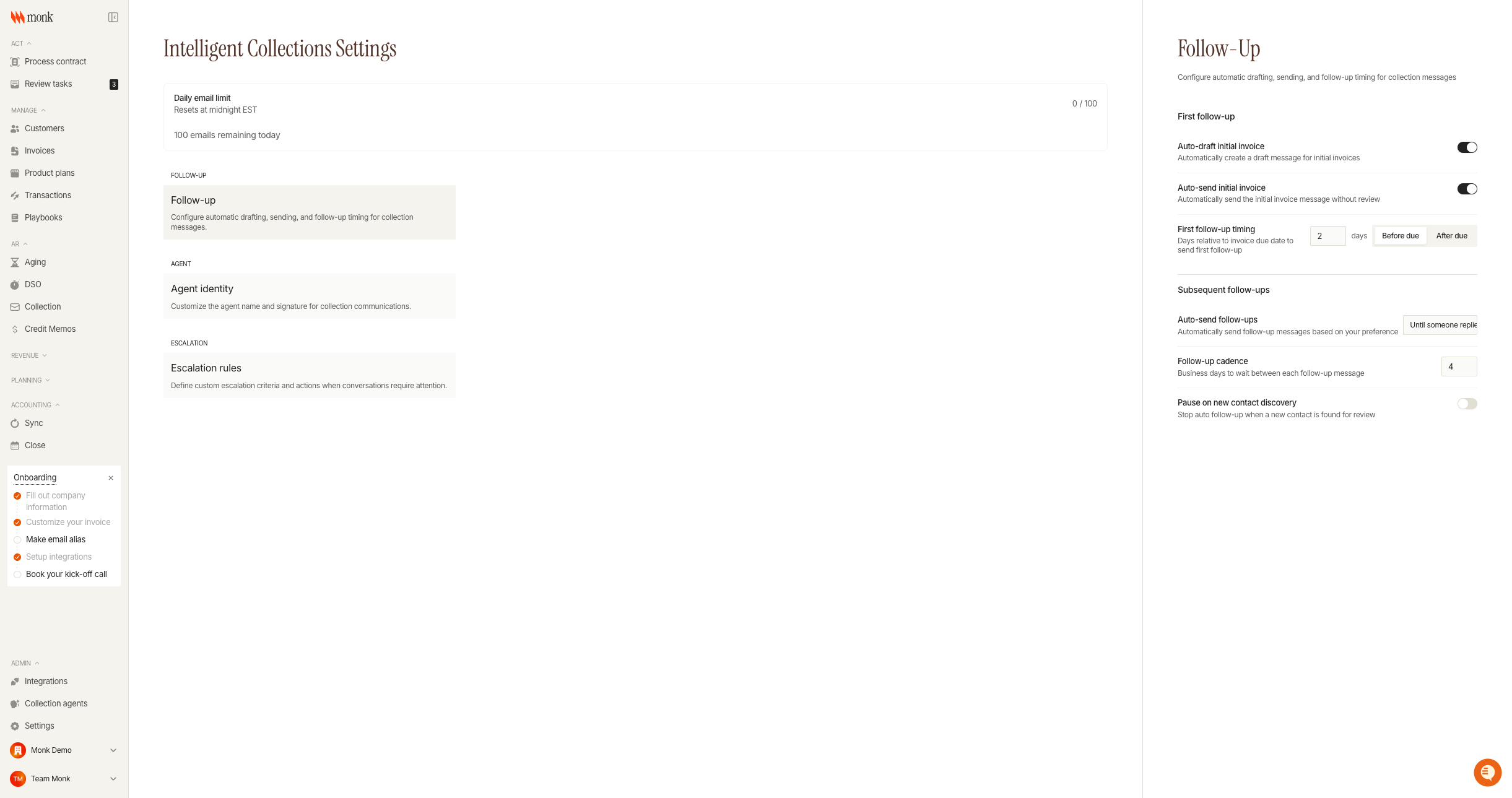
Initial Invoice Settings
Setting | Description |
Auto-draft initial invoice | Automatically creates a draft message when an invoice becomes eligible for collection |
Auto-send initial invoice | Sends the initial invoice message without requiring manual review |
First Follow-up Timing
The First follow-up setting determines when your agent sends the first follow-up relative to the invoice due date.
Auto-Send Follow-ups
Choose how the agent handles subsequent follow-up messages:
Option | Behavior |
Always | Agent sends all follow-ups automatically without review |
Until someone replies | Agent sends automatically until the customer responds, then requires review |
Never | All drafts require manual review and approval before sending |
Follow-up Cadence
Set the number of business days between follow-up messages. The default is 4 days, which provides regular touchpoints without overwhelming customers.
Shorter cadence (2-3 days): More aggressive collection for high-value invoices
Longer cadence (5-7 days): Gentler approach for relationship-sensitive accounts
Pause on New Contact Discovery
When enabled, the agent pauses automatic follow-ups when it discovers a new billing contact (from bounced emails or CC'd recipients). This allows you to review the new contact before the agent continues.
Agent Settings
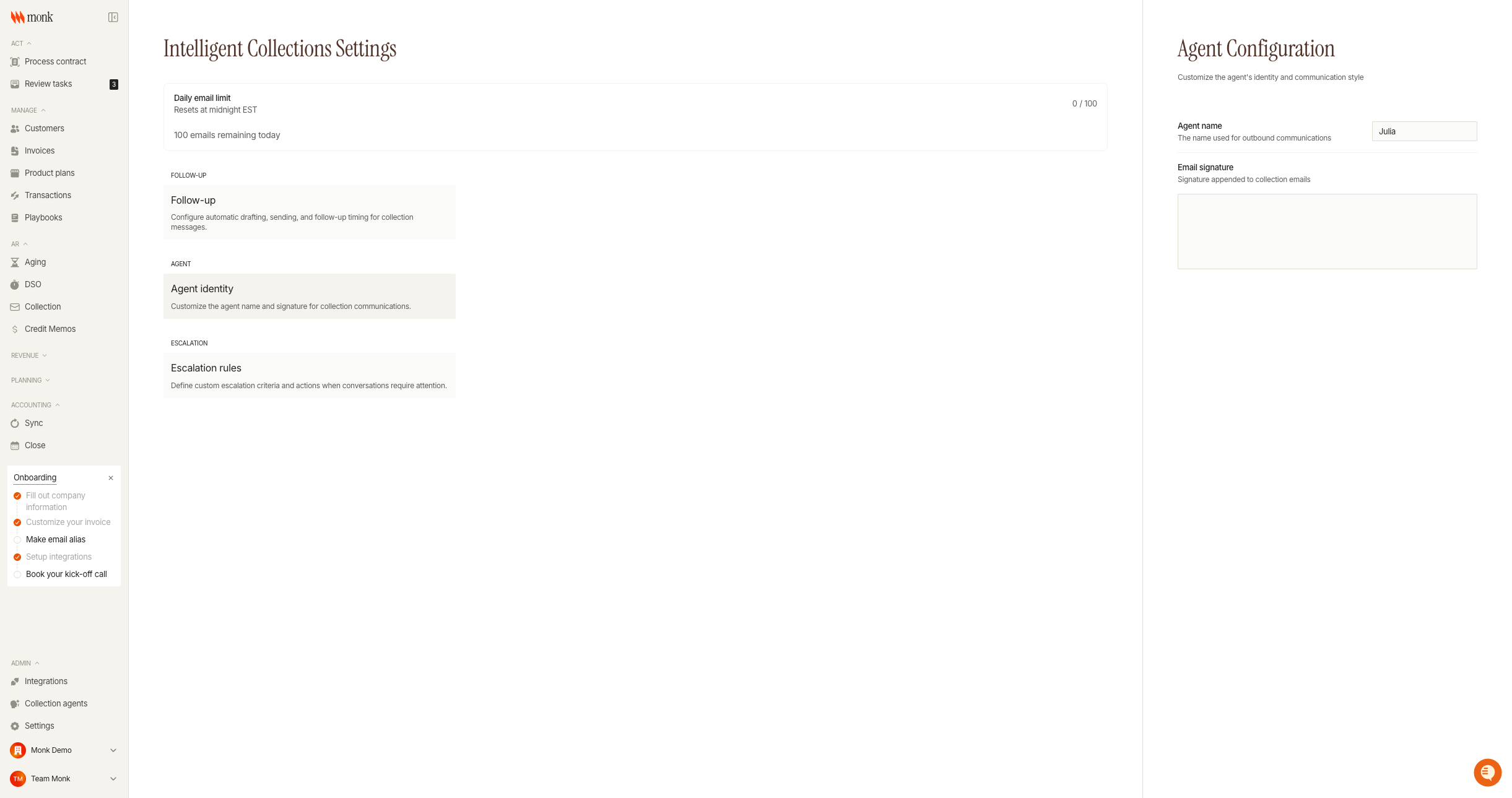
The Agent tab customizes your agent's identity in customer communications.
Agent Name
The name used in email signatures and when the agent refers to itself. The default is "Julia" but you can change it to:
Match an existing team member's name
Use a generic name like "AR Team" or "Billing Team"
Create a distinct persona for your collections
Tip: Using a consistent, human-sounding name builds familiarity with customers.
Email Signature
Create a custom signature appended to all collection emails. The signature editor supports rich text formatting including:
Bold, italic, and underline text
Links to your website or payment portal
Company contact information
Example signature:
Best regards,
Julia
Accounts Receivable Team
Phone: (555) 123-4567
support@yourcompany.com
Escalation Settings
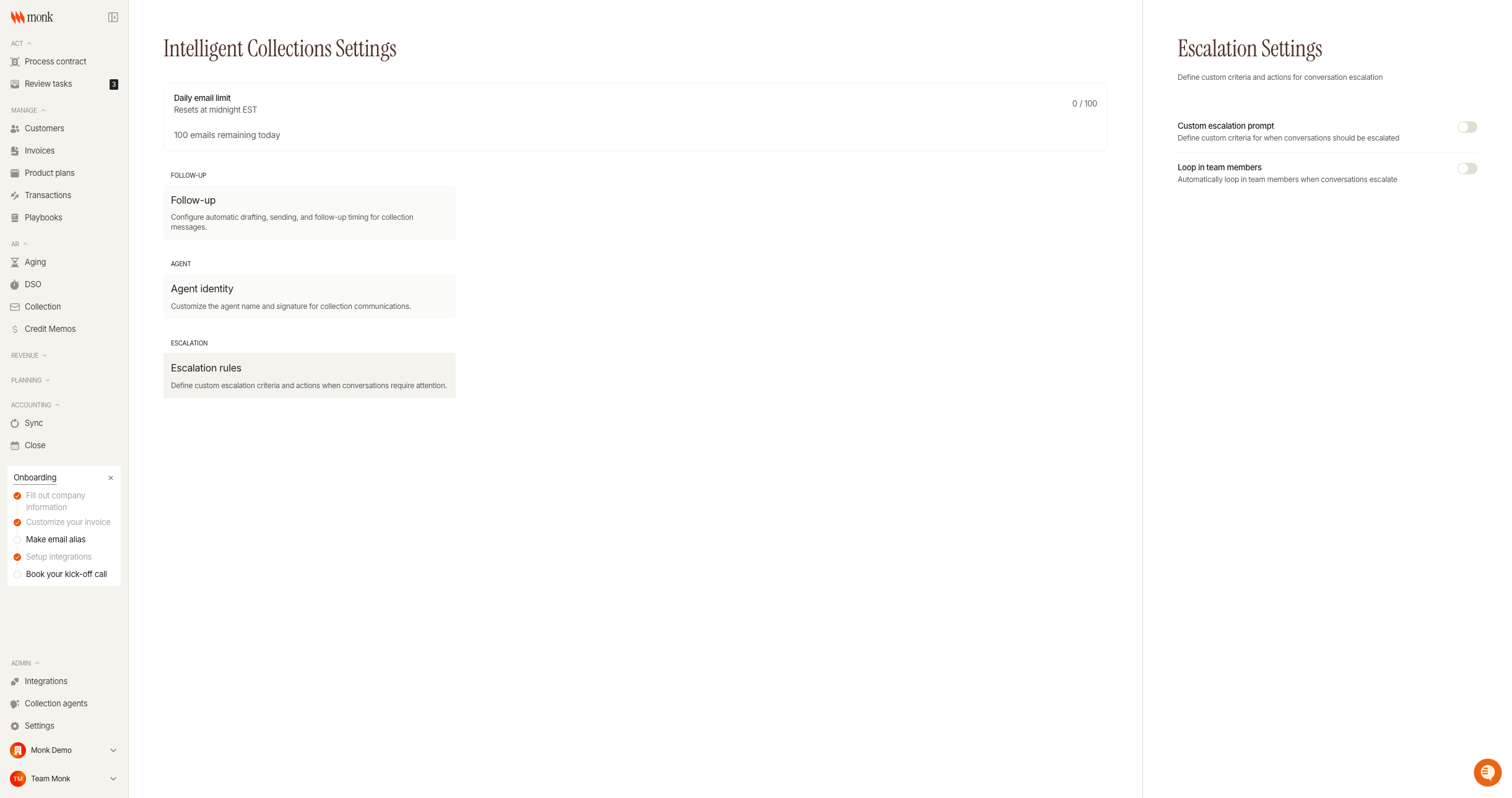
The Escalation tab defines what triggers escalation and what happens when conversations need human attention.
Custom Escalation Prompt
Enable this to define additional criteria beyond the default escalation triggers.
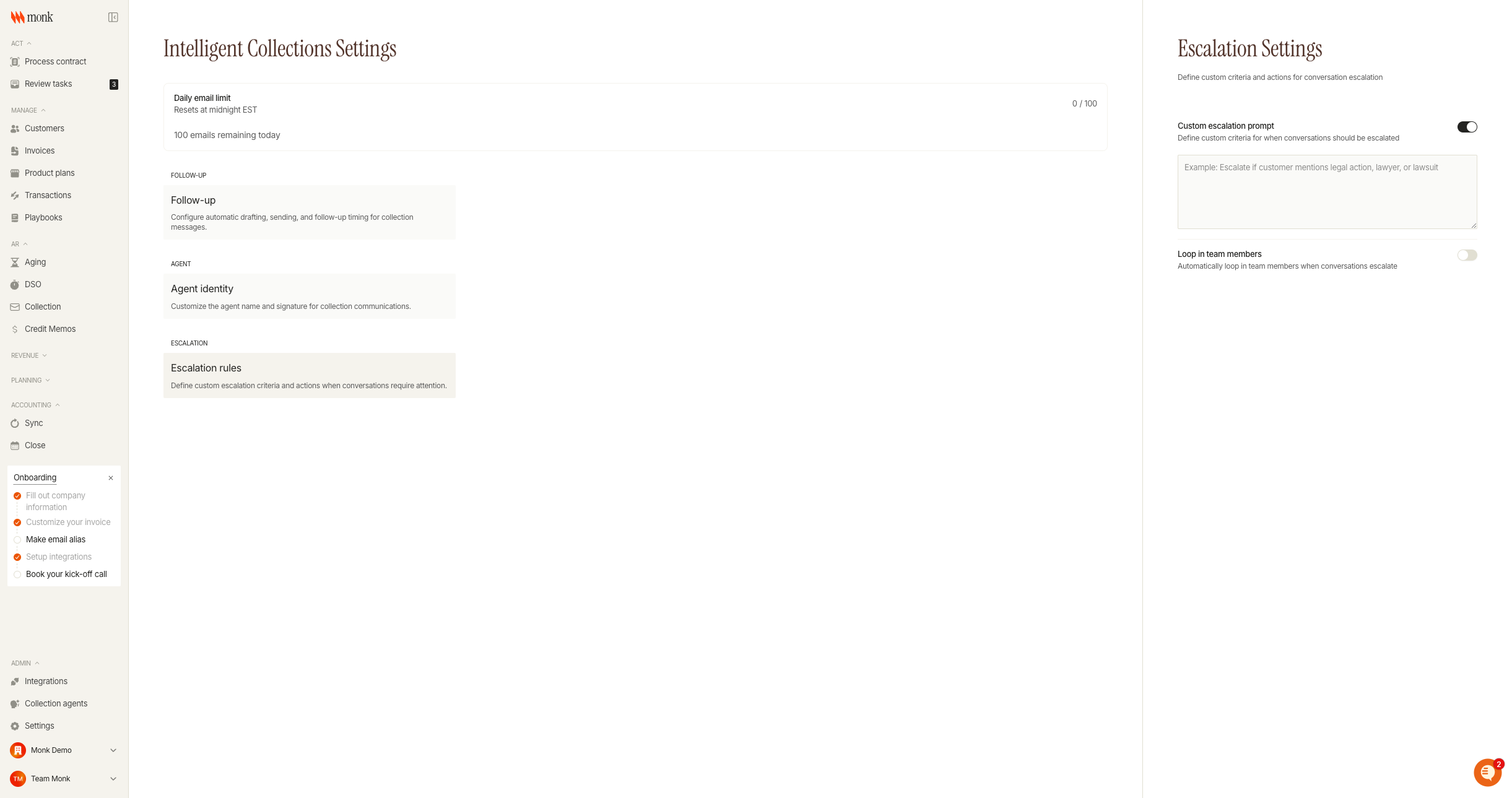
To configure:
Toggle Custom escalation prompt to ON
Enter your criteria in the text field using natural language
The AI evaluates messages against both default triggers AND your custom criteria
Example prompts:
"Escalate if customer mentions legal action, lawyer, or lawsuit"
"Escalate any request related to Project Alpha or Contract #12345"
"Escalate if customer asks to speak with a manager"
Loop in Team Members
When enabled, specified team members are automatically added to escalated conversations via email.
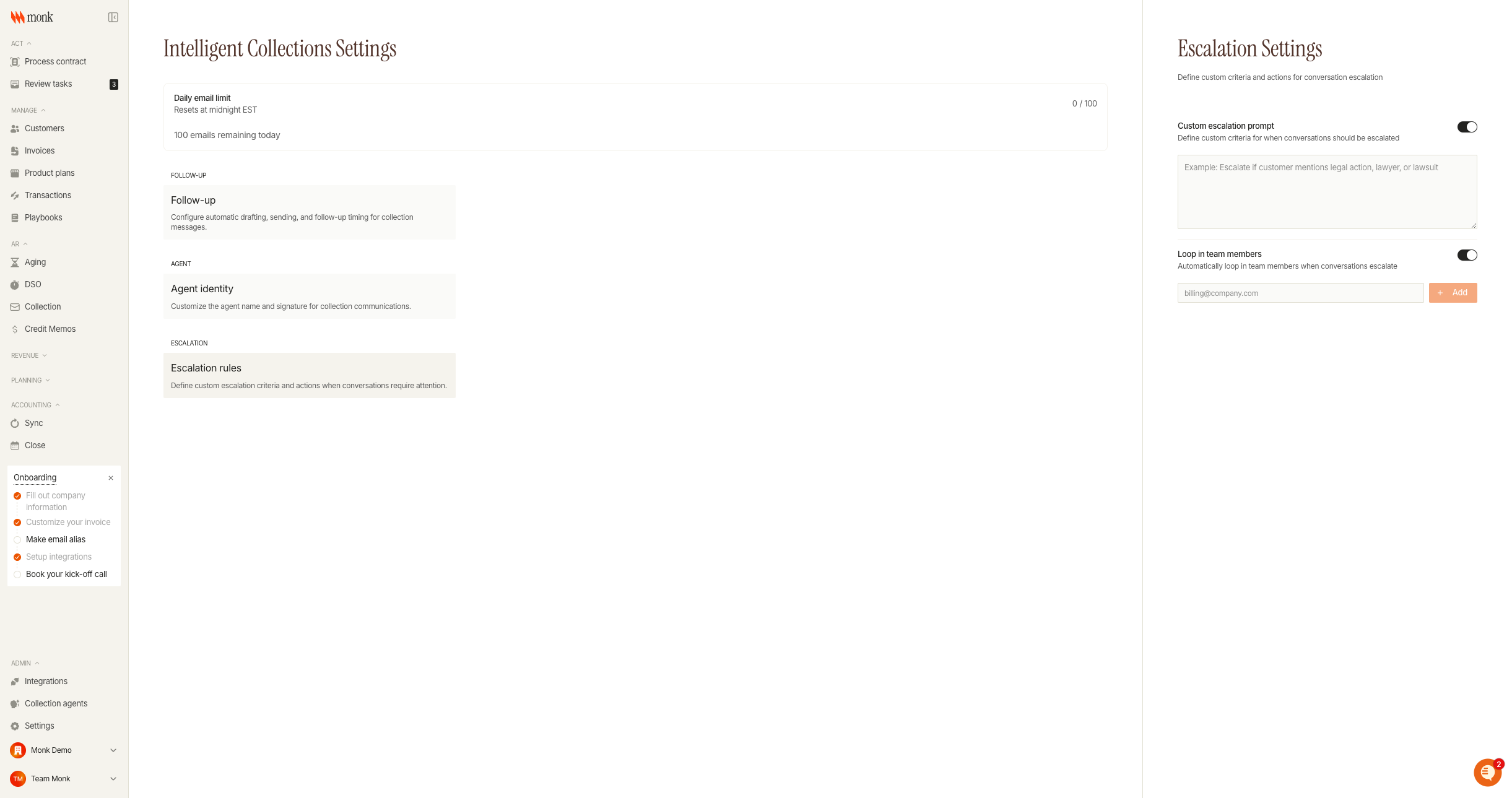
To configure:
Toggle Loop in team members to ON
Enter an email address in the input field
Click Add to include the team member
Repeat for additional team members
Remove emails by clicking the X on the badge
Looped-in team members receive the full conversation thread and can take over communication directly.
Troubleshooting
Agent isn't drafting messages
Cause: Auto-draft may be disabled for initial invoices.
Fix: Enable "Auto-draft initial invoice" in Follow-up settings.
Follow-ups are sending too frequently
Cause: Cadence setting may be too short.
Fix: Increase the follow-up cadence to 4-5 business days in Follow-up settings.
Escalations aren't notifying the team
Cause: "Loop in team members" may be disabled or empty.
Fix: Enable the setting and add at least one email address in Escalation settings.