Collection Conversations
Last updated: January 24, 2026
Overview
Collection Conversations in Monk provide a unified view of all communication with customers about overdue invoices.
Prerequisites
Active Monk account with Collections enabled
At least one overdue invoice assigned to a customer
Email integration configured
Understanding Collection Conversations
When Monk agent sends an invoice or initializes a collections sequence, it creates a collection conversation to track all communication with that customer.
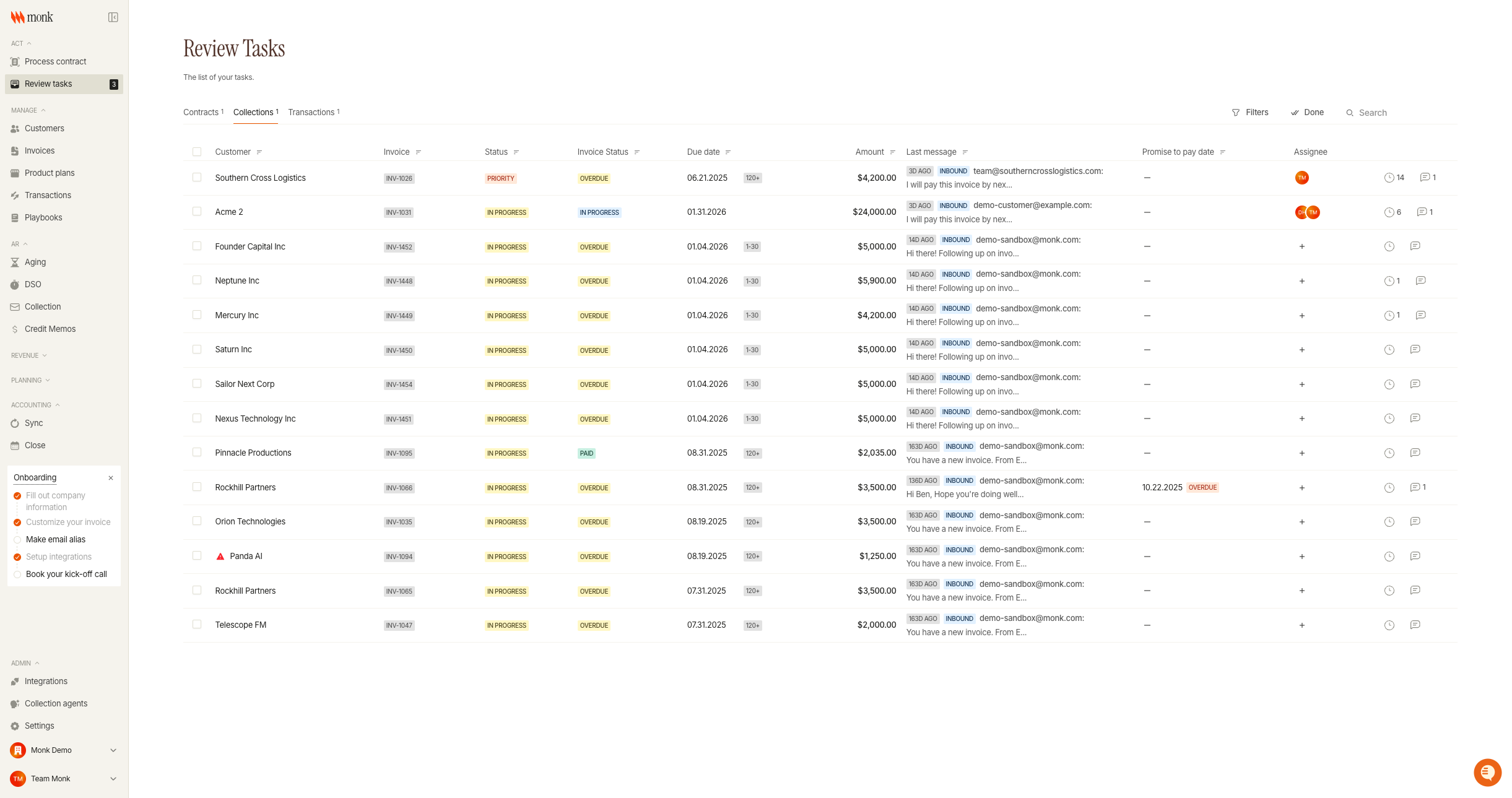
The Collections Queue shows all invoices requiring attention, noted as Priority. From here, you can:
View invoice status, amount, and due date
See the last message date and excerpt
Monitor promise-to-pay dates
Filter by various criteria including status, aging, and assignee
Viewing Conversations
Accessing from Review Tasks
Navigate to Review Tasks > Collections to see all active collection conversations. Click on any row to open the conversation detail view.
Agent Controls
Promise to Pay
Set a date when the customer has promised to pay (if included in thread with the agent, this field will be populated automatically):
Click the Promise to Pay date picker
Select the expected payment date
Monk Agent will pause follow-ups until after this date
Resolve Conversation
When an invoice is paid or the issue is resolved:
Click Resolve conversation
The conversation moves to the completed queue
Monk Agent stops all automated follow-ups
To reopen a resolved conversation, click Reopen.
Troubleshooting
No draft appears in composer
Cause: Draft may not have been generated yet, or auto-draft is disabled.
Fix: Check that "Auto-draft initial invoice" is enabled in Collection Settings. You can see scheduled send time from the invoices page, on the invoice detail sheet.
Agent not following up
Cause: Conversation may be escalated, resolved, or have a promise-to-pay date set.
Fix: Check the Agent status in the sidebar. Resume collection if paused, or clear the promise-to-pay date if it has passed.