Customizing Your Invoice Template
Last updated: January 24, 2026
Overview
Customize how your invoices look and behave by configuring your company branding and invoice layout settings. These settings apply to all invoices by default, with the option to override per customer.
Steps
Step 1: Navigate to Settings
Click Settings in the left sidebar to access your account configuration.
Step 2: Configure Company Branding
Select the Company tab to set up your branding elements that appear on invoices.
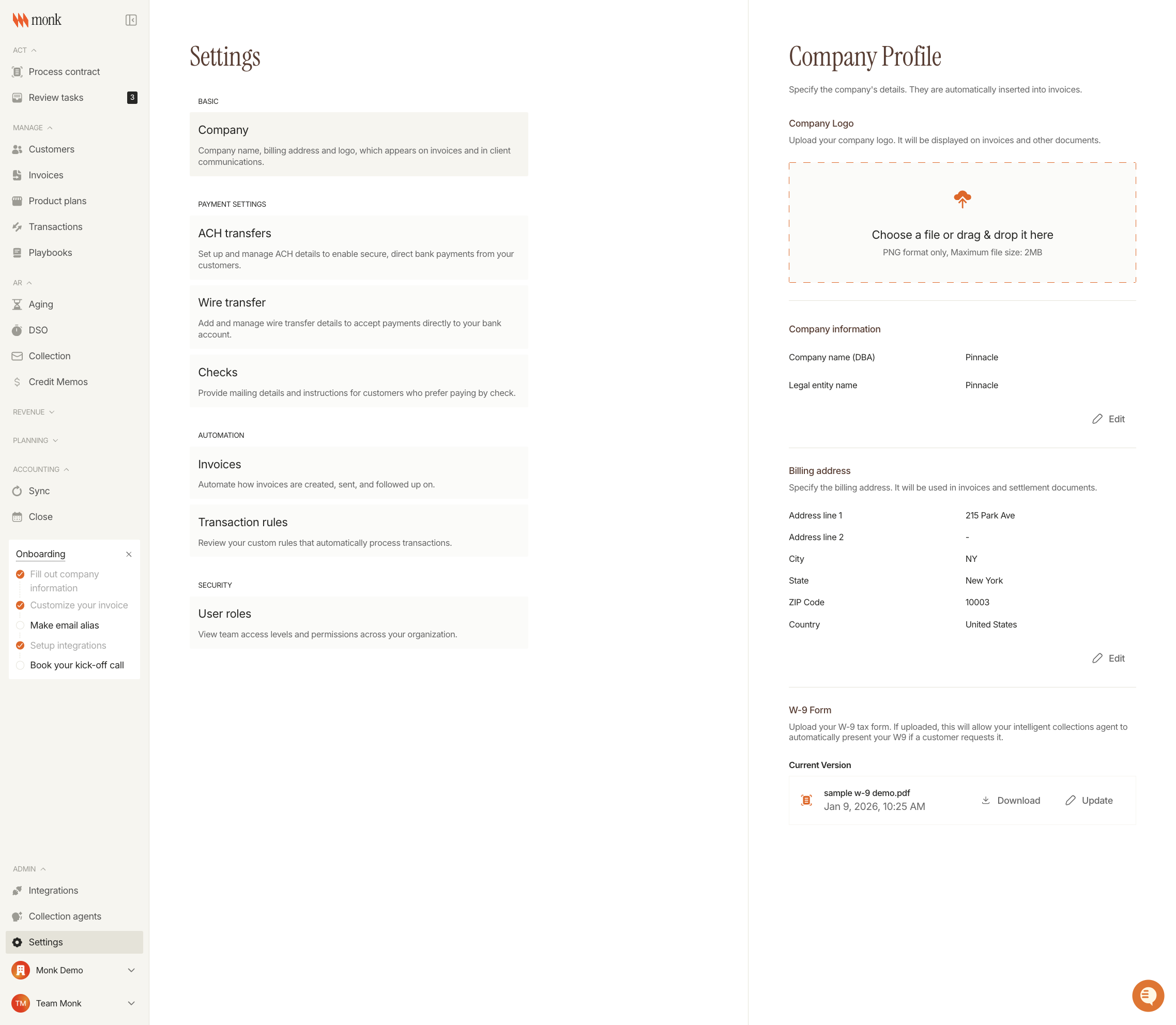
Company Logo
Upload your company logo to display on invoices and client communications.
Company Information
Set your business identity:
Field | Description |
Company name (DBA) | Your "doing business as" name shown to customers |
Legal entity name | Your official registered business name |
Click Edit to modify these fields.
Billing Address
Your billing address appears on all invoices. Click Edit to update:
Address line 1
Address line 2 (optional)
City
State/Region
ZIP Code
Country
Step 3: Configure Invoice Layout Settings
Select the Invoices tab to control how invoices are created and sent.
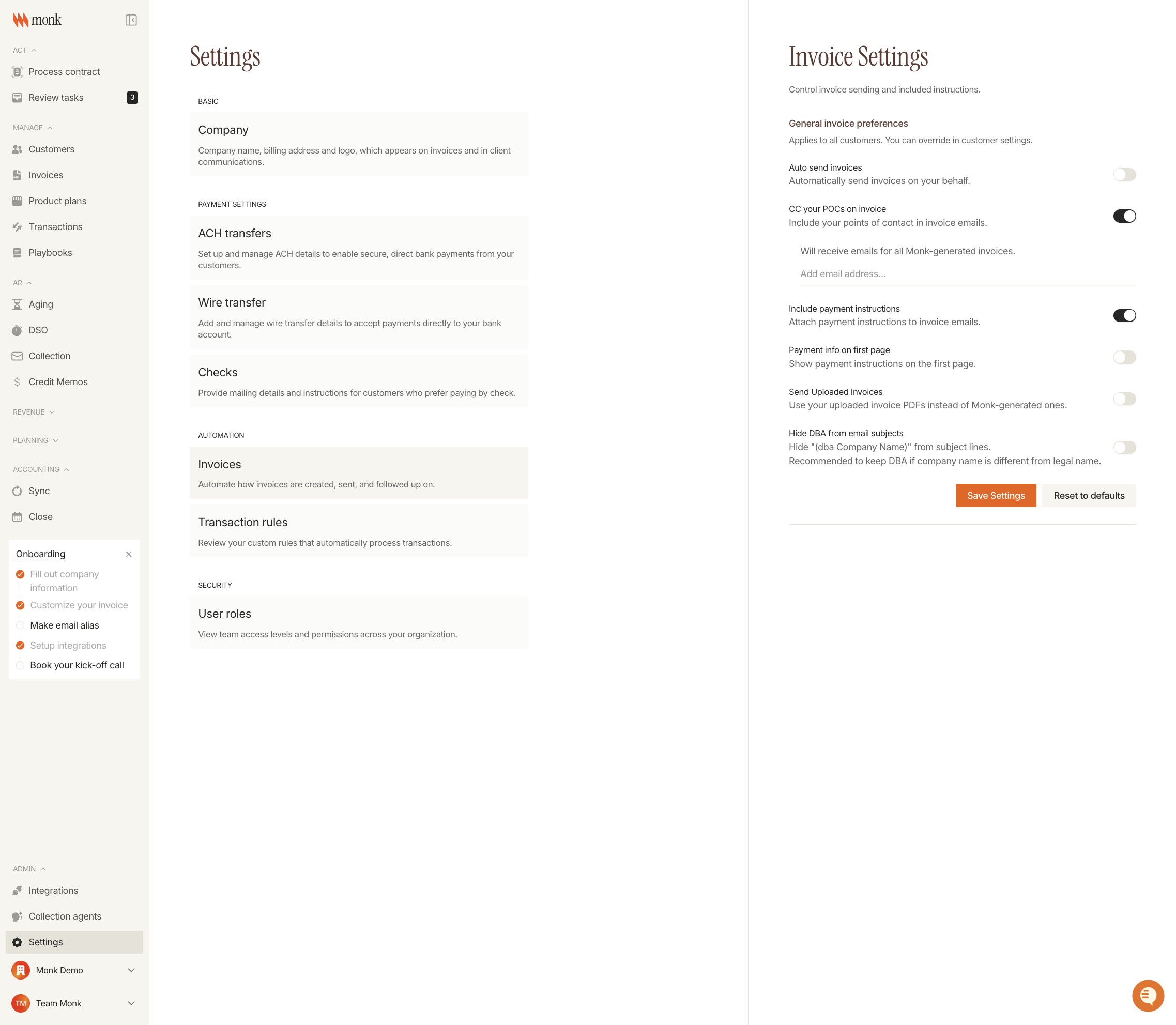
General Invoice Preferences
Setting | Description |
Auto send invoices | Automatically send invoices on your behalf when created |
CC your POCs on invoice | Include your points of contact in invoice email CC field |
Include payment instructions | Attach payment details to invoice emails |
Payment info on first page | Display payment instructions on the first page of the PDF |
Send uploaded invoices | Use your uploaded invoice PDFs instead of Monk-generated ones |
Hide DBA from email subjects | Remove "(dba Company Name)" from email subject lines |
Toggle each setting on or off based on your preferences.
Step 4: Save Your Settings
Click Save Settings to apply your changes. Use Reset to defaults to restore original settings.
Tips
Upload a high-quality logo - Your logo represents your brand on every invoice
Keep payment instructions enabled - This helps customers understand how to pay you
Use the DBA setting wisely - If your company name differs from your legal name, keeping the DBA in emails helps customers recognize you
Test with a draft invoice - After saving, create a draft invoice to preview how your customizations appear