Escalation Triggers Guide
Last updated: January 24, 2026
Overview
Escalation triggers are AI-powered rules that automatically detect when a customer conversation requires human attention. When an escalation is triggered, Monk's AI agent pauses automatic responses, flags the conversation for review, and optionally notifies team members. This ensures sensitive situations - like payment disputes or legal concerns- receive the careful attention they deserve.
Prerequisites
An active Monk account with Intelligent Collections enabled
At least one active customer conversation
How Escalation Detection Works
When your customers reply to collection emails, Monk's AI analyzes the message content to determine if human intervention is needed. The AI distinguishes between routine accounts receivable communications and situations that genuinely require escalation.
Default Escalation Triggers
Monk automatically escalates conversations when the AI detects:
Trigger | Description |
Payment disputes | Customer contests the invoice amount, terms, or validity |
Payment confusion | Customer claims they already paid but the system shows it unpaid |
Legal mentions | Threats of legal action, mentions of lawyers, or formal complaints |
Technical payment issues | Customer reports technical problems preventing them from paying |
Contract discrepancies | Disputes about contract terms or invoice details that need resolution |
Document requests | Requests for documents that cannot be automatically provided (bank letters, purchase orders, proof of insurance, ACH forms, wire instructions, tax certificates, etc.) |
W9 requests | Requests for W9/W-9 tax forms (only if W9 is not configured in your account) |
What Does NOT Trigger Escalation
The agents are designed to recognize routine AR communications that don't need human attention, some examples below:
Routine payment delay notifications ("We'll pay next week")
Simple questions about invoice details
Payment confirmation or processing updates
Standard collection responses
Requests for invoices (these are provided automatically)
W9 requests when W9 is available in your account
Configuring Escalation Settings
Navigate to Collection agents in the sidebar, then select Escalation rules to access your escalation configuration.
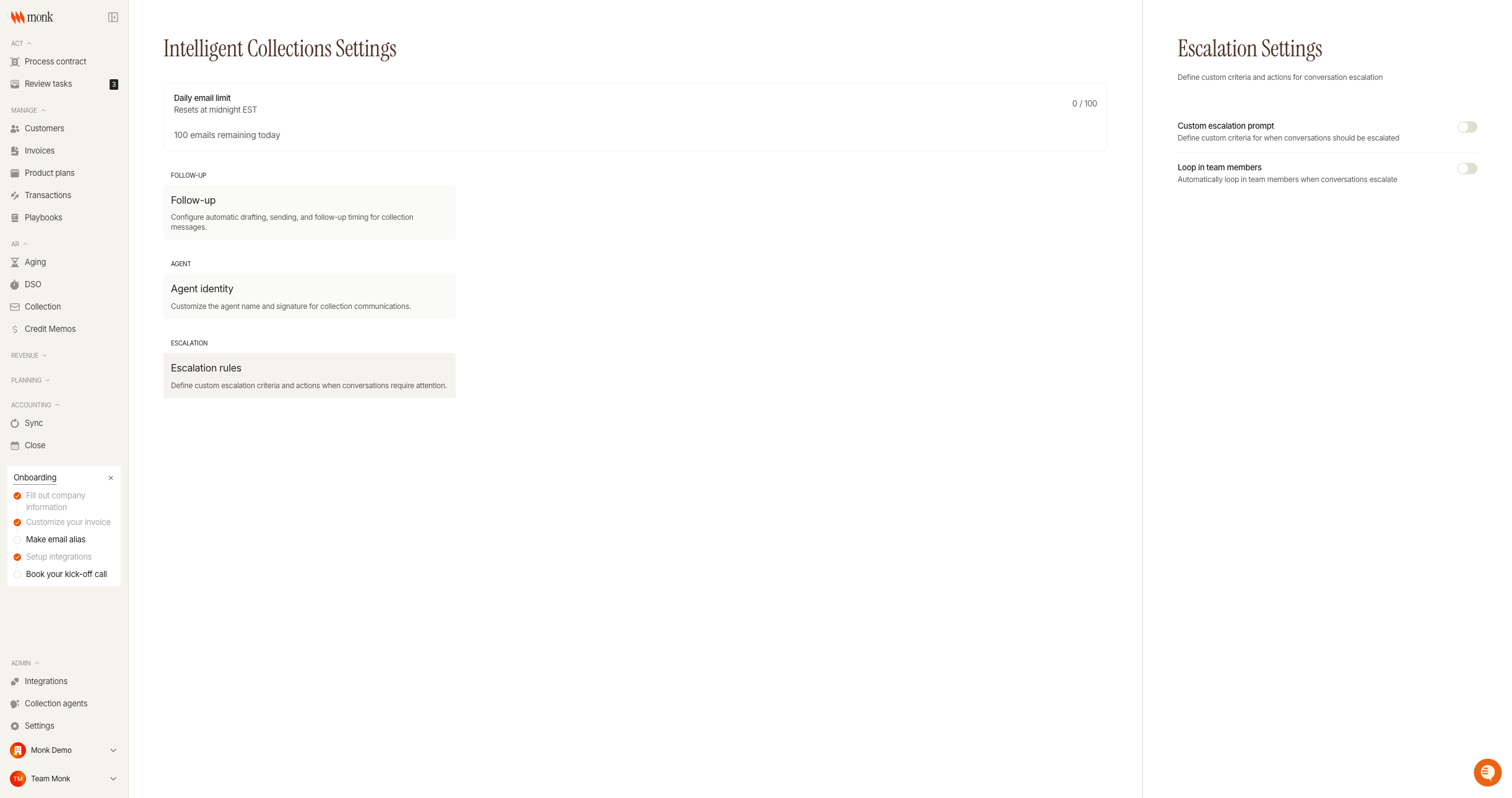
Custom Escalation Prompt
Enable this setting to define additional criteria for when conversations should be escalated beyond the default triggers.
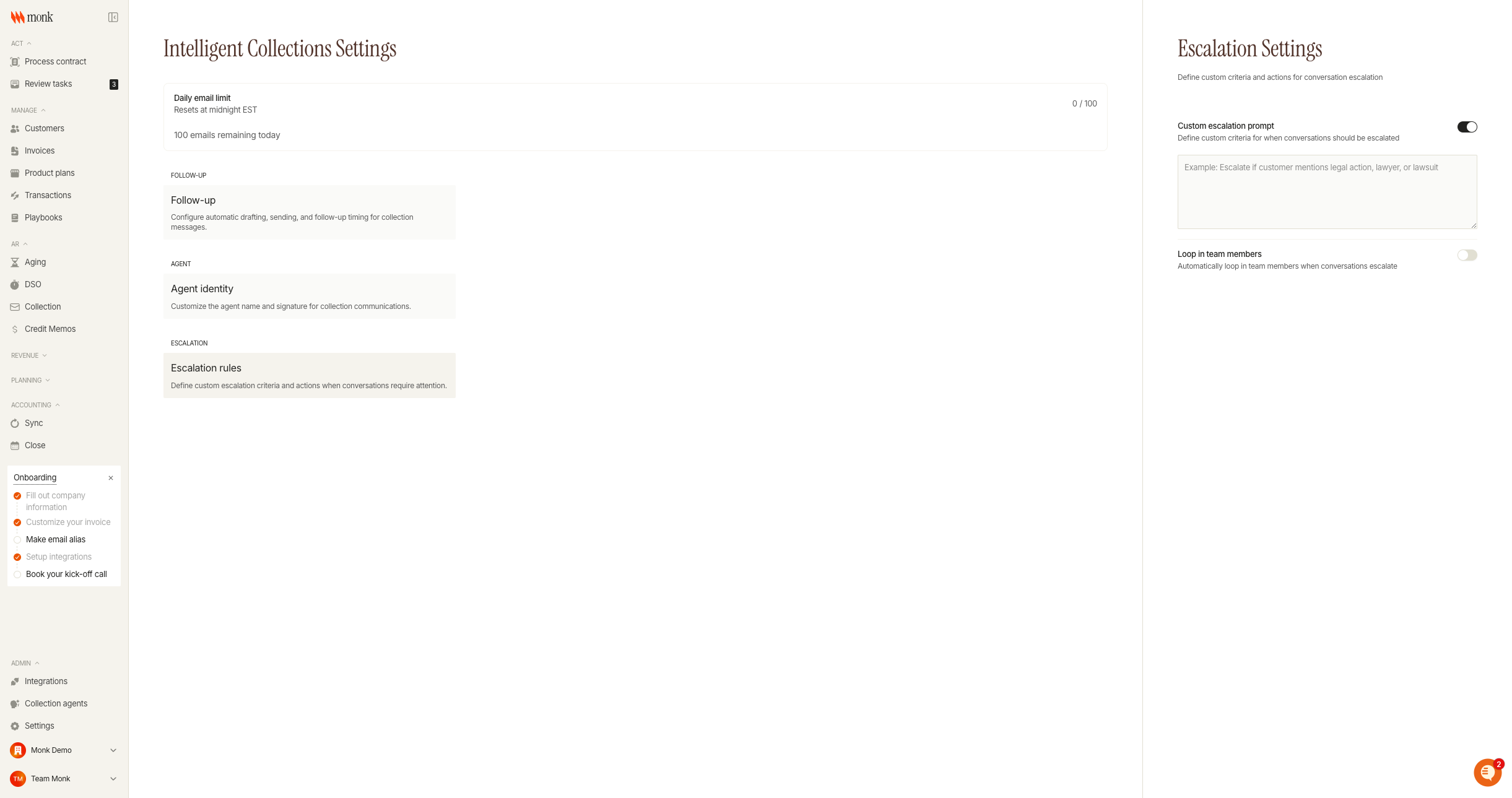
To configure:
Toggle Custom escalation prompt to ON
Enter your custom criteria in the text field
The agent will evaluate emails against both default triggers AND your custom criteria
Example prompts:
"Escalate if customer mentions legal action, lawyer, or lawsuit"
"Escalate any mention of bankruptcy or insolvency"
"Escalate if customer asks to speak with a manager or supervisor"
"Escalate requests related to specific project X or contract Y"
Custom criteria don't need to be exact matches - the agent understands context and variations.
Loop in Team Members
When enabled, this feature automatically adds specified team members to escalated conversations by including them on the email thread.
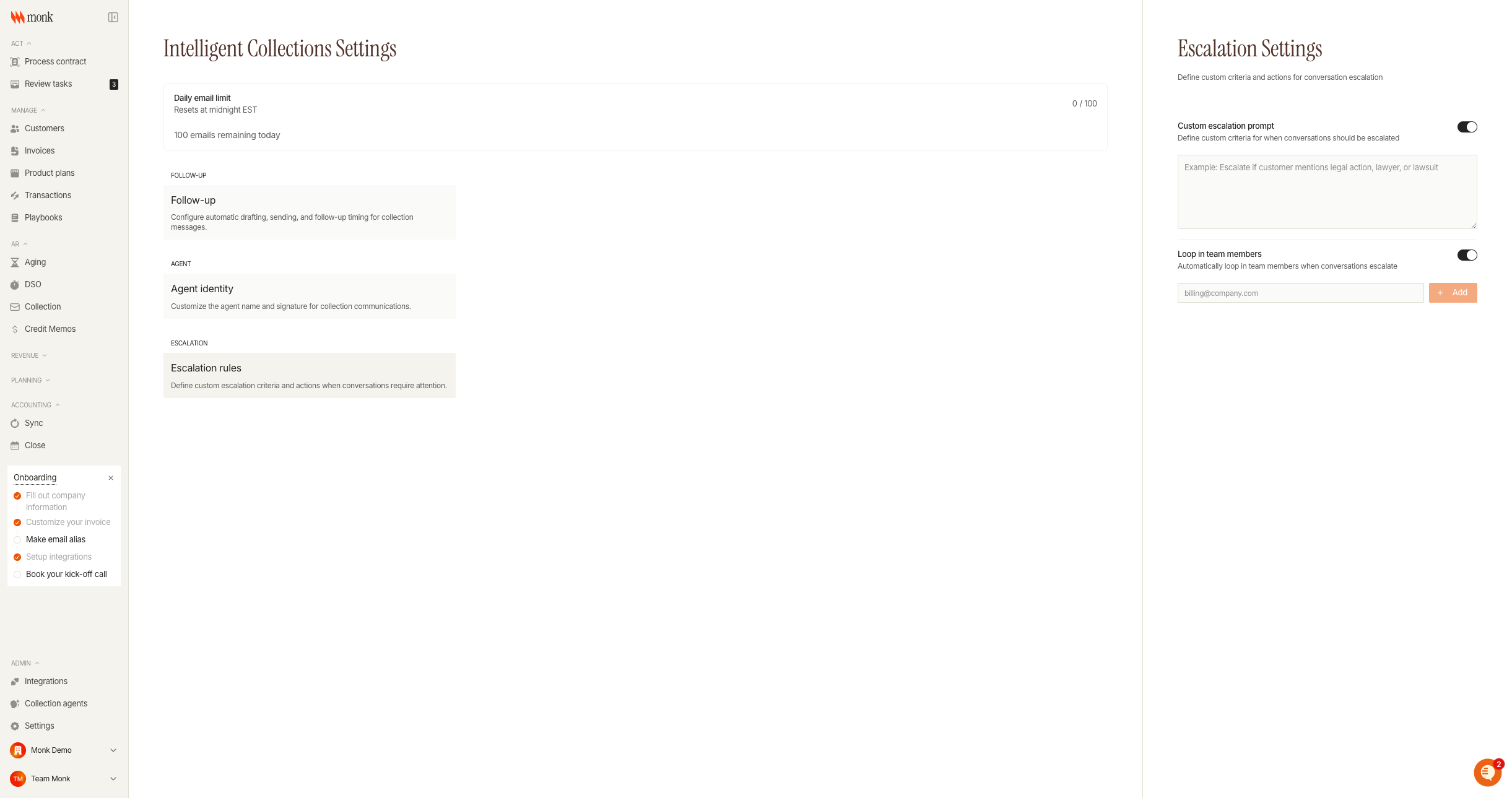
To configure:
Toggle Loop in team members to ON
Enter email addresses of team members who should be notified
Click Add for each email address
Added emails appear as badges and can be removed by clicking the X
When a conversation is escalated, the AI will loop in these team members so they can take over the conversation.
What Happens When a Conversation Escalates
When an escalation is triggered:
Follow-ups pause - The agent stops sending automatic follow-ups for this conversation
Conversation flagged - The conversation appears in your Review Tasks queue
Team notified - If configured, specified team members are looped into the email thread
Activity logged - The escalation reason is recorded for your reference
Conversations remain in escalated status until manually resolved. The AI will not resume automatic communications until the escalation is addressed.
Troubleshooting
Conversations escalating too frequently
Cause: Your custom escalation prompt may be too broad.
Fix: Review and refine your custom criteria to be more specific. Consider removing generic terms that could match routine communications.
Conversations not escalating when they should
Cause: The situation may not match default triggers or custom criteria.
Fix: Add a custom escalation prompt that specifically addresses the scenarios you want to capture. Be explicit about the keywords or situations that matter to your business.
Team members not receiving escalation notifications
Cause: The "Loop in team members" setting may be disabled or emails not configured.
Fix: Ensure the setting is enabled and at least one valid email address has been added. Verify team members aren't filtering these emails to spam.